Configuring Moments Digest in Slack
Last updated: January 22, 2026
Customize your Peerbound Slack feed to stay focused on what matters most
Once you've added Peerbound to a Slack channel, you can configure the types of customer proof Moments and how often you receive them.
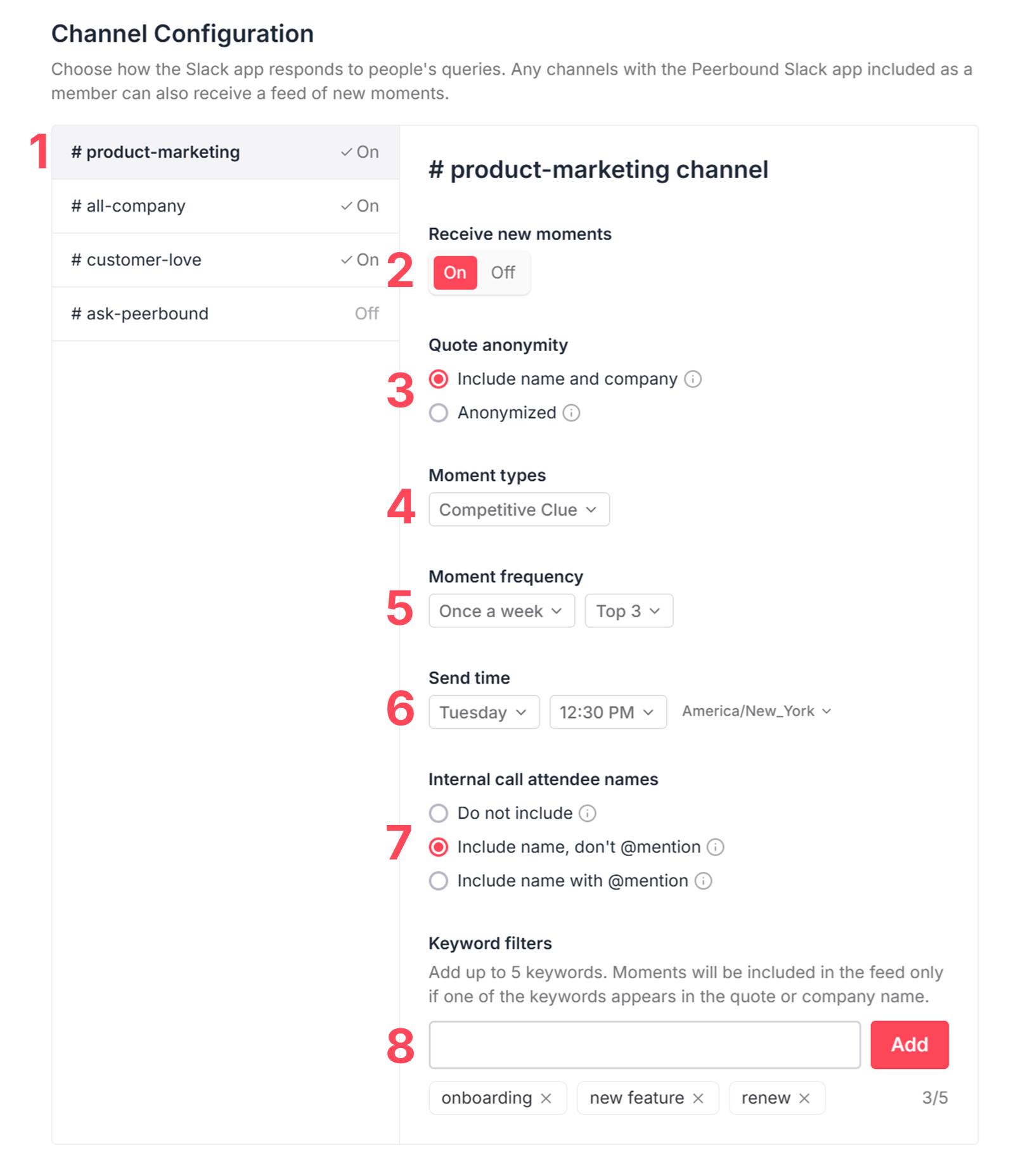
1. Select the Slack Channel to Customize
After adding @peerbound to a Slack channel, the channel will appear here in Peerbound Settings.
Select the channel you want to customize.
2. Activate the Moments Digest
By default, the Moments digest is turned off as it is not recommended for certain channels (e.g., sales channels where reps are using @Peerbound to find customer proof). Toggle this On to configure Moment Digest settings for this channel.
3. Set Quote Attribution Visibility Preferences
Control how quotes appear in your Slack feed based on your team’s privacy preferences. You can choose to anonymize quotes that have not been approved, or to include the name and company of the account.
Include name and company. Quotes will show attribution at the contact and account level, and will include a green or yellow circle to indicate if the quote can or cannot be shared publicly. E.g.,:
“I love your team. They're so helpful and knowledgeable.”
Leo Johnson, Vice President of Operations at BigMediaCorp 🟡
Anonymized. Quote attribution will be hidden in the channel. E.g.:
“I love your team. They're so helpful and knowledgeable.”
Vice President of Operations at a global media corporation
This setting can be customized per Slack channel to align with your internal sharing policies.
4. Choose Which Moment Types to Receive
Choose All to receive every type of Moment, or select specific types you want to include.
Available Moment Types:
Competitive Clue: Why customers chose your company over competitors
Impact Insight: Quantifiable results your product has driven
Expansion Potential: Expressing interest in new products, features or services
AI Hype: Showing how they use your product's AI features
Partner Love: Showing major love for your company's partners
People Praise: Shoutouts for your company's people, teams, and processes
Sentiment Signal: Showing serious love for your company
Use Case Finder: Showing specific ways they use your product
For more details, see:📄 Navigating Moment Types
5. Control Delivery Frequency
Customize how often you receive Moments. Choose between real-time delivery, or have Peerbound batch and send them once daily (Monday–Friday) or once weekly.
6. Control Delivery Time
Customize when you receive Moments. Select the time of day for daily moments or the day and time of day for weekly moments.
7. Internal call attendee names
You can include the internal call attendees from the call that the Moment came from. You have three options to select from:
Do not include. You will just see the quote with the attribution you selected.
Include name, don't @mention. Below attribution, we will list the attendees of the call as text.
Include name with @mention. Below attribution, we will tag the call attendees so they receive a notification in Slack.
8. Keyword filters
Add up to 5 keywords. Moments will be included in the feed only if one of the keywords appears in the quote or company name.
Use cases:
Send product-specific Moments to your Product team's channel by filtering for feature names
Route competitive intel to Sales by filtering for specific competitor mentions
Why it's helpful: Different teams care about different types of customer proof. Keyword filters let you route the right Moments to the right channels, so Product sees feature feedback, Sales sees competitive intel for competitors they are up against, and Customer Success sees retention signals.
Peerbound’s Suggestions
Many teams use Slack Moments to keep the right insights flowing to the right people. For example: giving Competitive teams access to Competitive Clues, sharing Partner Love with Partnerships, and celebrating People Praise with CSMs and support teams.
Suggested Configuration
Channel | Cadence | Moment Types |
Customer Success | Weekly | People Praise |
Partnerships | Weekly | Partner Love |
Competitive | Weekly | Competitive Clue |
Customer Marketing | Daily | All types |
Product Marketing | Daily | All types |
All Marketing | Weekly | All types |
This setup helps ensure each team gets the customer proof that’s most relevant to their focus area.
Support
If you run into any issues, please reach out to us at support@peerbound.com or message us in Slack.
To help us troubleshoot faster, include screenshots of any errors or unexpected behavior.