User Management
Last updated: July 16, 2025
Admins can manage users, update roles, and invite new team members to Peerbound. However, user management settings may be limited depending on your organization’s SSO configuration.
NOTE: Slack usage is separate. People do not need to be added as Web Users in order to use the Slackbot.
Accessing User Management
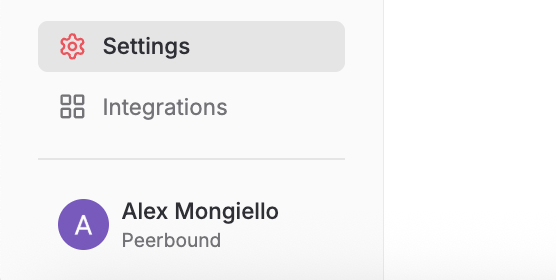
1. Open Settings
From the Peerbound sidebar, navigate to Settings to manage your admin-level configurations.
2. Select the User Management Tab
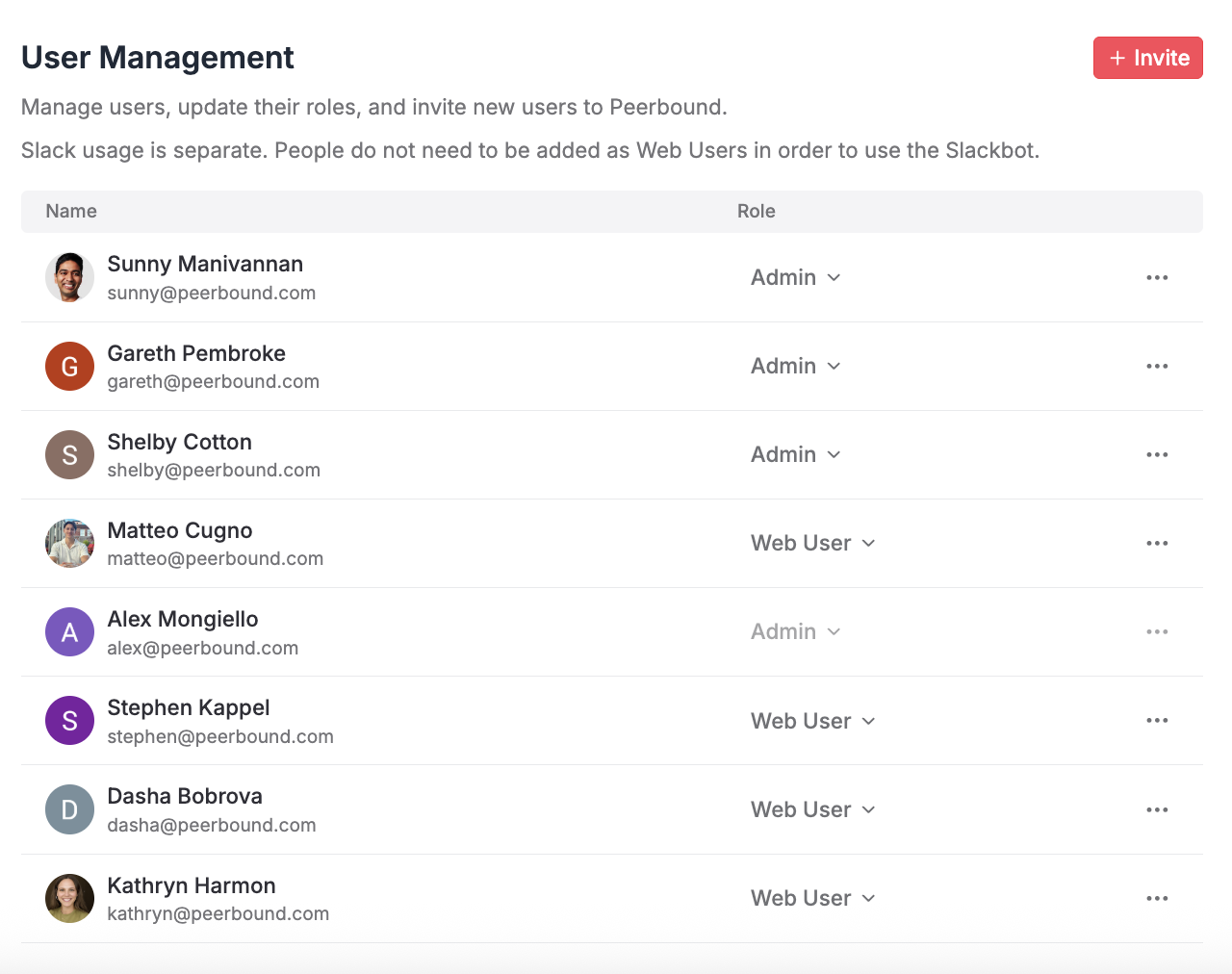
Select the User Management tab to view and manage users in your organization.

Manage Users
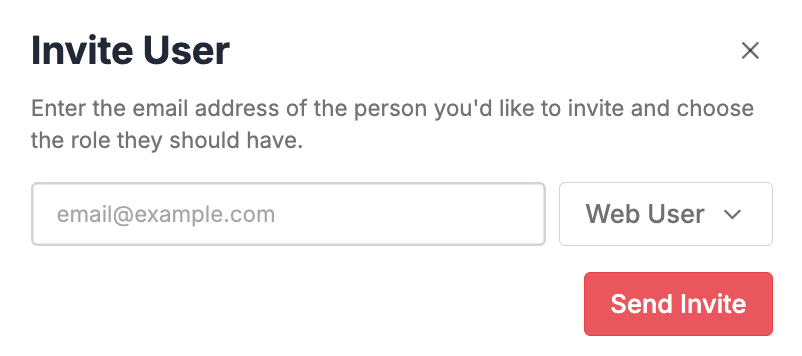
To add a user, click on
+ Invitewhere you can enter their email, choose their role, and send the invite
To update roles, press on the drop down associated with the user under the Roles column and select either Web user or Admin
Web Users can only access
Admins can invite or remove users
To remove a user, press on the three dots and select Remove
Support
If you run into any issues, please reach out to us at support@peerbound.com or message us in Slack.
To help us troubleshoot faster, include screenshots of any errors or unexpected behavior.