Configuring Proactive Proof
Last updated: July 17, 2025
Automatically deliver relevant customer proof to reps after prospect calls
Proactive Proof is an automated email Peerbound sends to your sales reps after a prospect call. It includes curated quotes, stories, G2 reviews, and other customer proof, tailored to the prospect’s concerns, so your reps can follow up with credibility and speed.
For more details, see: 📄 Proactive Proof
Step-by-Step Setup
1. Define Customer Status in Salesforce
We need to set up your Customer definitions on the Salesforce configuration page.
Proactive Proof is only sent for net-new prospects, not for upsells or renewals with existing customers. To configure this, we need to know how you identify your existing customers vs. new prospects in Salesforce.
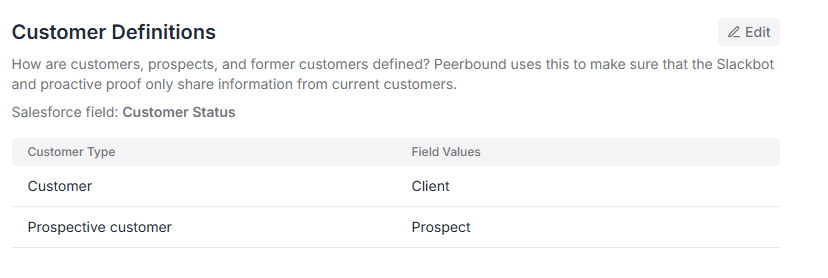
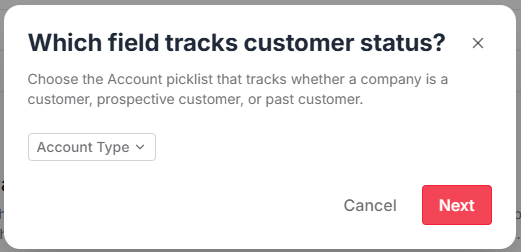
Typically this Salesforce field is labeled as Account Type. Ensure this field has been imported at the top of the Salesforce configuration page.

Once this field is imported, select this as the field that tracks customer status.
After you have selected this field, map out the field values that represent Client Accounts vs. Prospects.
2. Identify Relevant Opportunity Stages
Proactive Proof is most effective early in the deal cycle—when a prospect is forming impressions, evaluating solutions, or voicing initial concerns. It’s typically less relevant during late-stage activities like contract finalization or pricing negotiations.
Since every company defines opportunity stages differently, Peerbound allows you to choose when Proactive Proof should trigger based on your unique Salesforce setup.
How to find your opportunity stages in Salesforce:
Go to Salesforce > Setup (the cog in the top right)
Navigate to Object Manager (on the bar on the top)
Select Opportunity
Click Fields & Relationships
Choose Stage
Once you’ve reviewed your stages, share the relevant ones with your CSM so they can configure Peerbound accordingly.
We recommend sharing a screenshot as the exact spelling and spacing is important when configuring this.
3. Configure the Email Header (Optional)
You can personalize the intro of the Proactive Proof email, for example:
This email is brought to you by COMPANY’s Customer Marketing team, PERSON A & PERSON B. Please reach out to customermarketing@company.com with any questions about the content.
Share any header personalization with you CSM.
4. Choose Target Recipients & Launch Timing
Share with your CSM which sales reps should receive Proactive Proof and when you’d like the emails to begin.
Support
If you run into any issues, please reach out to us at support@peerbound.com or message us in Slack.
To help us troubleshoot faster, include screenshots of any errors or unexpected behavior.