Brand & Appearance
Last updated: July 16, 2025
Customize logos, colors, and slide templates to match your brand
Peerbound lets you apply your company’s branding across all customer-facing materials. You can easily upload your logo, set your brand color, and preview branded templates right from the Settings page.
Where Branding Is Applied
Your branding appears in:
Quote Approval Microsites: The pages customers see when reviewing and approving quotes
Auto-Generated Slides: Branded slides with customer quotes
Shared Content: Any public-facing materials generated from Peerbound
How to Customize Branding in Peerbound
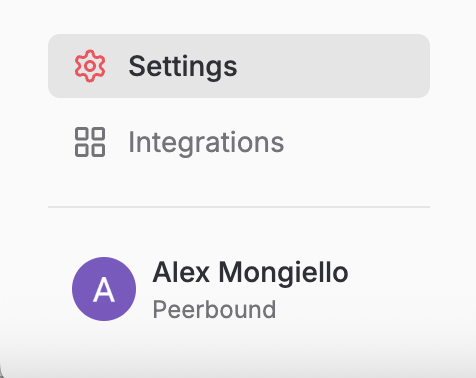
1. Open Settings
From the Peerbound sidebar, navigate to Settings to begin customizing your brand and templates.
2. Upload Your Company Logo
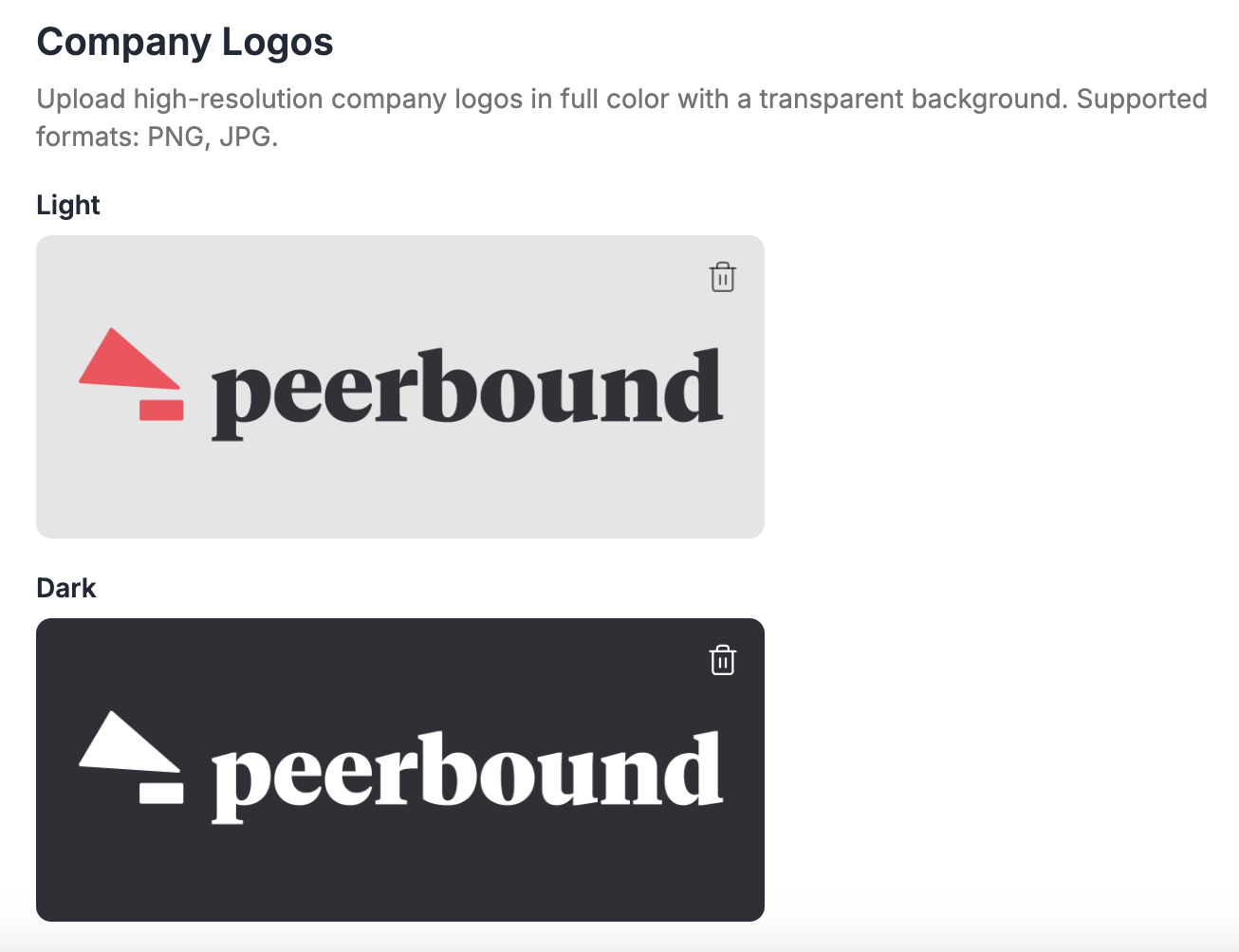
Click the logo area in the Light or Dark theme section
To ensure your logo looks good in both modes, you can upload separate versions for each theme.
Upload a high-resolution PNG or JPG with a transparent background
3. Set Your Brand Color
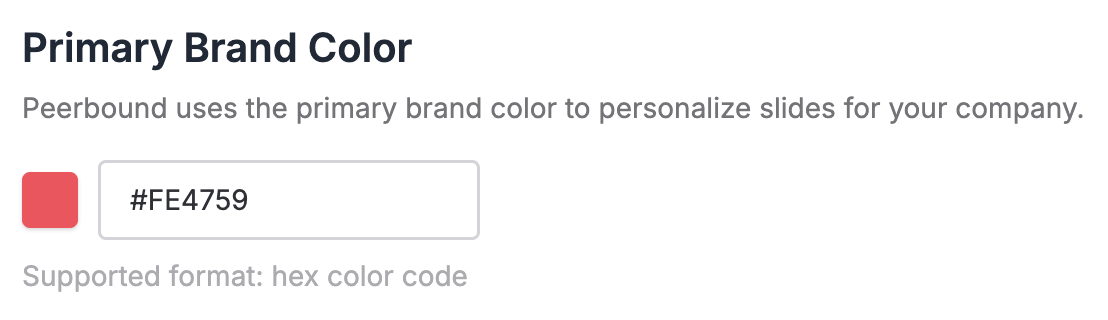
Click the Primary Brand Color field
Input your company’s primary color in hex code format (e.g.,
#0052CC)This color will be used across slides, quote approval microsites, and other branded assets
4. Preview Slide Templates
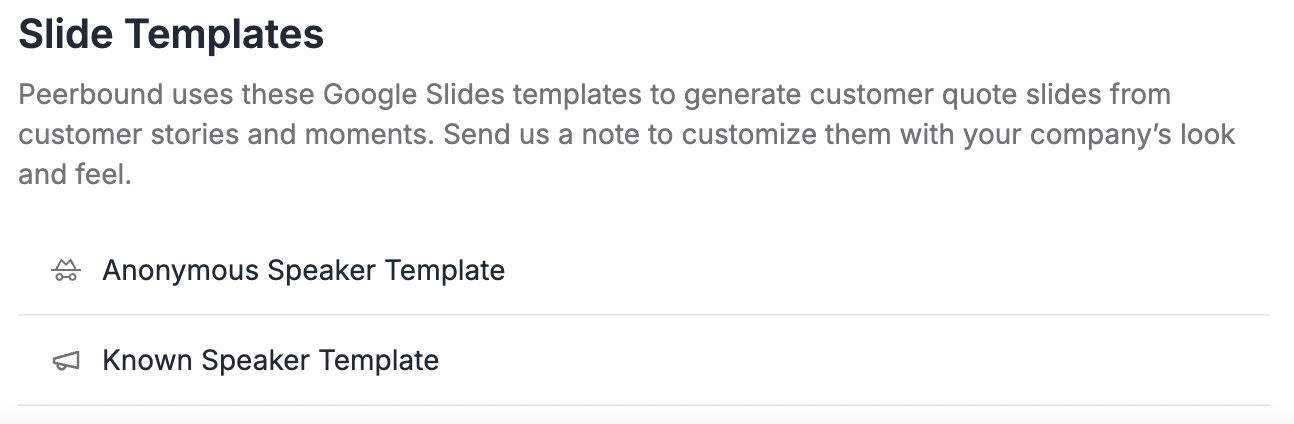
You can view how branded slides will appear depending on quote attribution preferences:
Anonymous Speaker Template: Used when speaker identity is hidden (e.g. Vice President of Operations at a global media corporation)
Known Speaker Template: Used when speaker name and company are shown (e.g. Leo Johnson, Vice President of Operations at BigMediaCorp)
How to Update Your Slide Template
Need to update the default slide layout?
Email your Customer Success Manager (CSM) with your updated Google Slides template
Peerbound will update your account so new quote exports reflect the changes
Support
If you run into any issues, please reach out to us at support@peerbound.com or message us in Slack.
To help us troubleshoot faster, include screenshots of any errors or unexpected behavior.