Content Guidelines
Last updated: July 16, 2025
Define your tone, voice, and messaging templates across Peerbound
Peerbound’s Content Guidelines ensure that all customer-facing materials—like customer stories, G2 review requests, and quote approvals—reflect your company’s brand voice and tone.
This centralized space allows you to manage writing standards and customize templates used across the platform.
These guidelines power:
Story generation that matches your brand’s tone
Review requests for G2 and quote approvals
Team consistency in customer communication
Accessing Content Guidelines
1. Open Settings
From the Peerbound sidebar, navigate to Settings to manage your admin-level configurations.
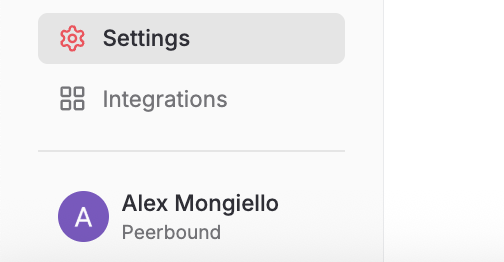
2. Select the Content Guidelines Tab
Click the Content Guidelines tab to access your brand’s writing standards and message templates.

Edit Voice & Tone
This guide ensures that Peerbound-generated content reflects your company’s brand and style.
Click Edit Voice & Tone to define the writing principles that Peerbound should follow when drafting customer stories.
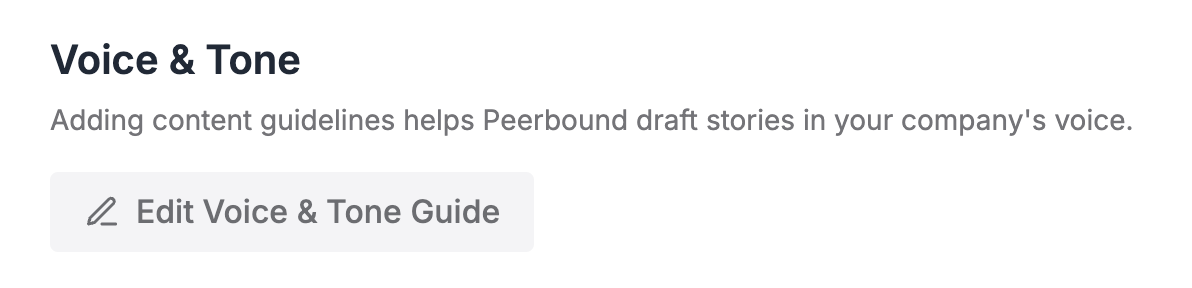
Common inputs include preferences for tone (e.g., professional, conversational), formatting (e.g., bullet points vs. paragraph), and use of jargon or voice modifiers.
These guidelines directly impact how your customer stories are drafted.
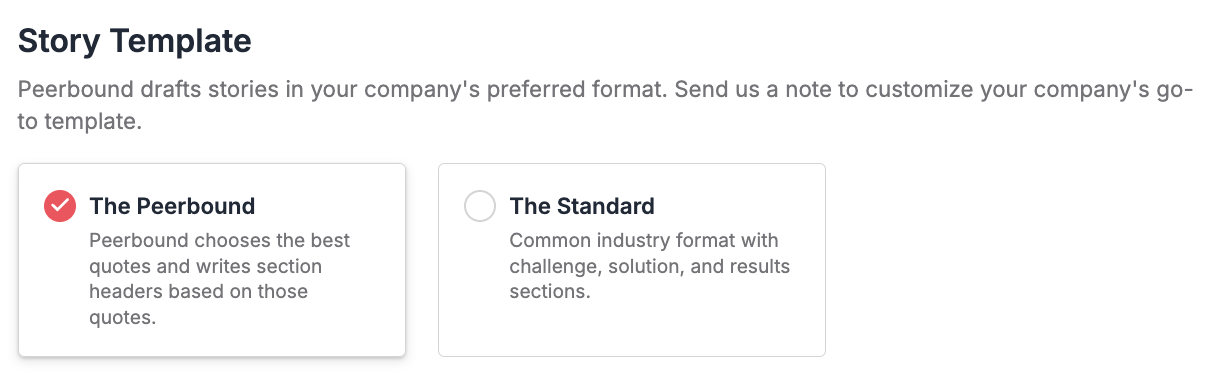
Choose a Default Story Template Format
Select a default story format that fits your storytelling style:
The Peerbound: Narrative-driven format where we identify the best quotes and write section headers based on those quotes.
The standard: traditional case study format (Challenge–Solution–Results)
This default will be used when team members generate new stories in the platform.
Customize Review Request Templates
Through Peerbound, marketers can easily request G2 reviews and Moments approvals from customers. To keep these messages on-brand and engaging, Peerbound lets you customize the email templates used for these requests.
You can adjust the language, tone, and structure of your templates so every request feels personal and aligned with your company’s voice. When you're ready, you can edit and preview each template from the Content Guidelines tab.
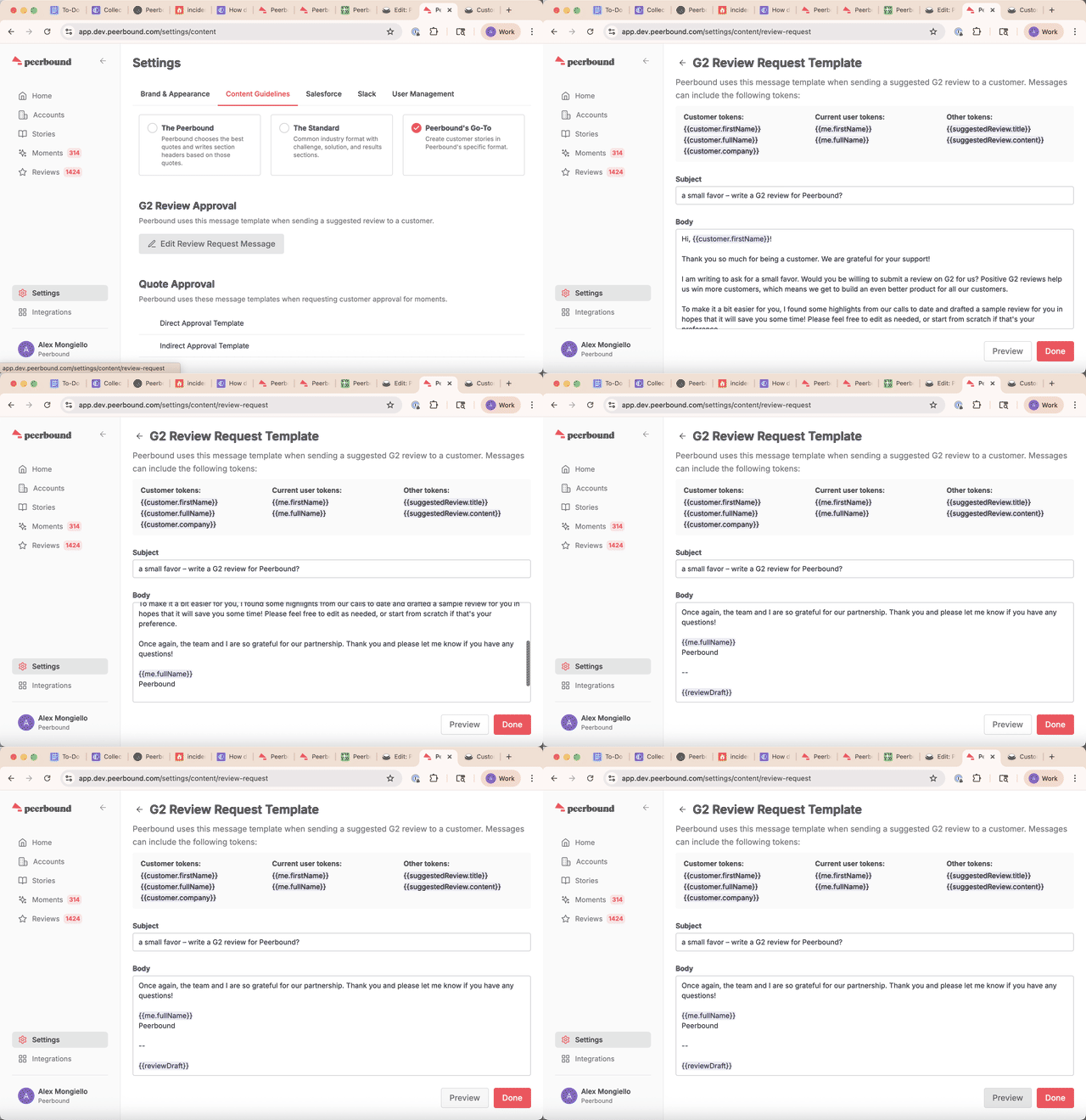
1. G2 Review Request Template
Click Edit Review Request Message to personalize how you ask customers to leave a G2 review.
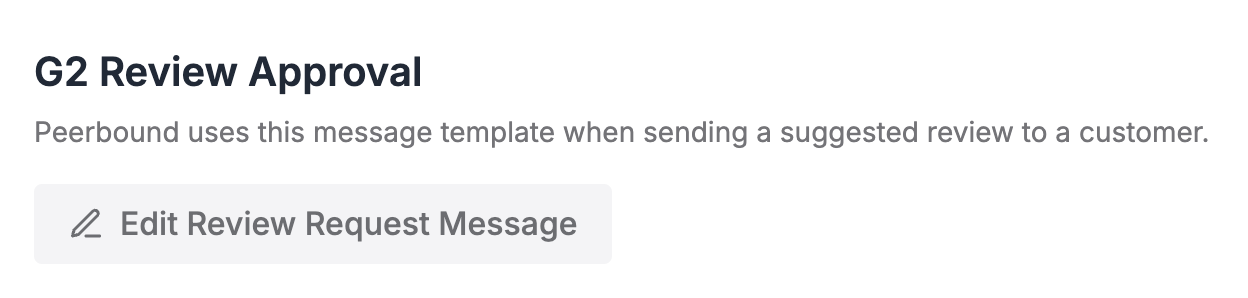
Click Preview in the bottom right next to Done to see how the message will appear to recipients.
Quote Approval Templates (Direct & Indirect)
Peerbound supports two types of quote approval workflows—Direct and Indirect—depending on who will contact the customer with the request.
Direct Quote Approval Template
Used when the approval request is sent directly to the person who made the statement.
To edit:
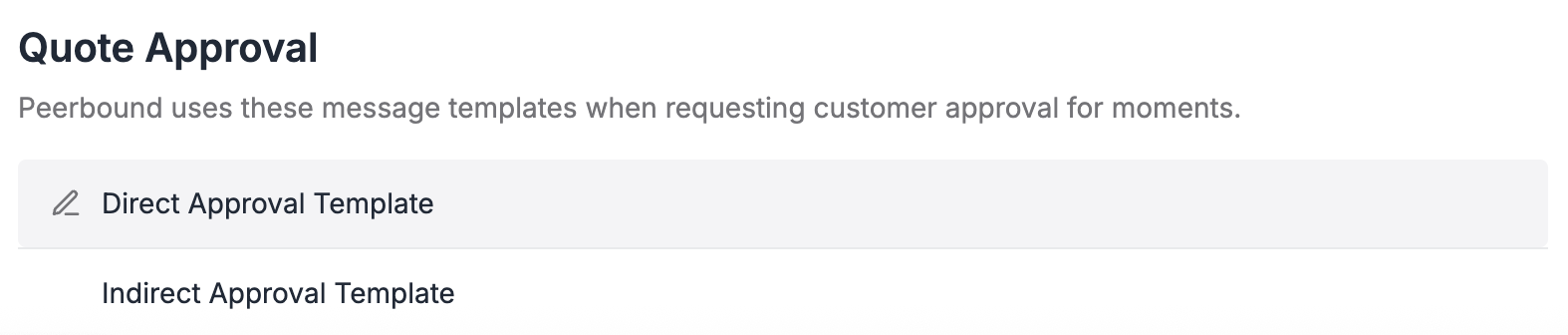
Hover over and click on Direct Approval Template
Configure you preferred language in the template for both the subject of the email and the body of the email
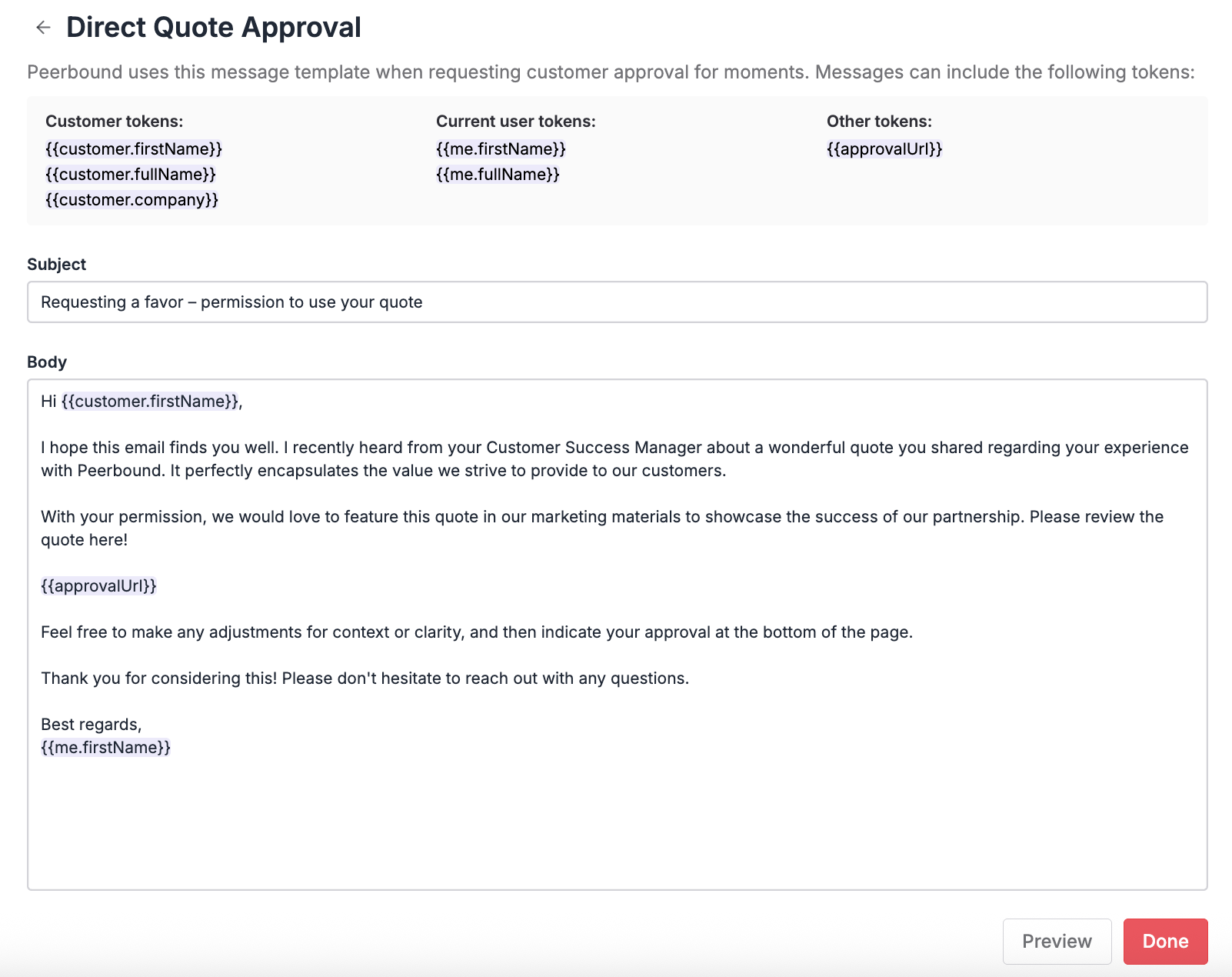
Click Preview to see how the message will appear before sending
Indirect Quote Approval Template
If you want a colleague who joined the call and heard the customer quote to handle the outreach, use the Indirect template. This template lets you request that your colleague contacts the customer on your behalf.
To edit:
Hover over and click on Indirect Approval Template
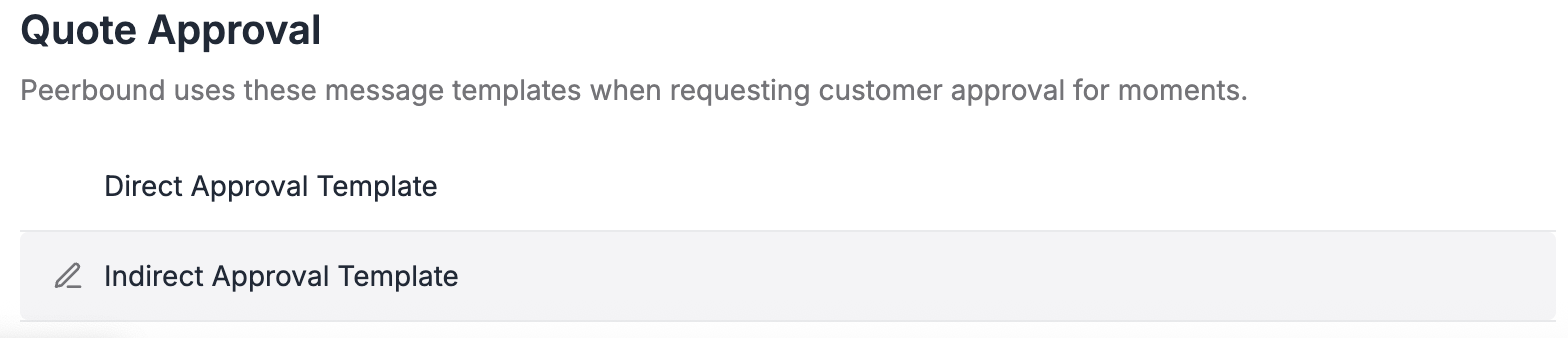
Configure you preferred language in the template for both the subject of the email and the body of the email
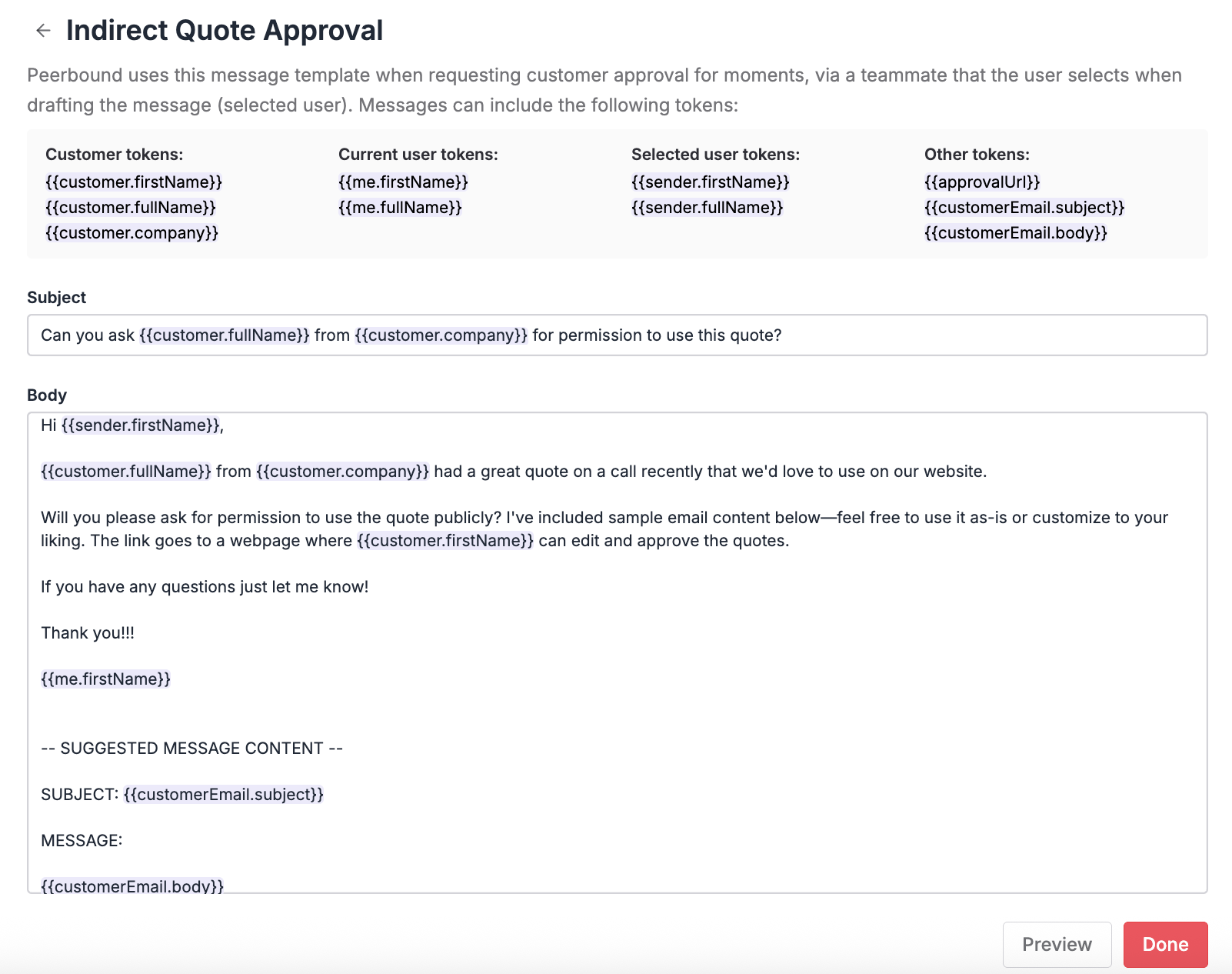
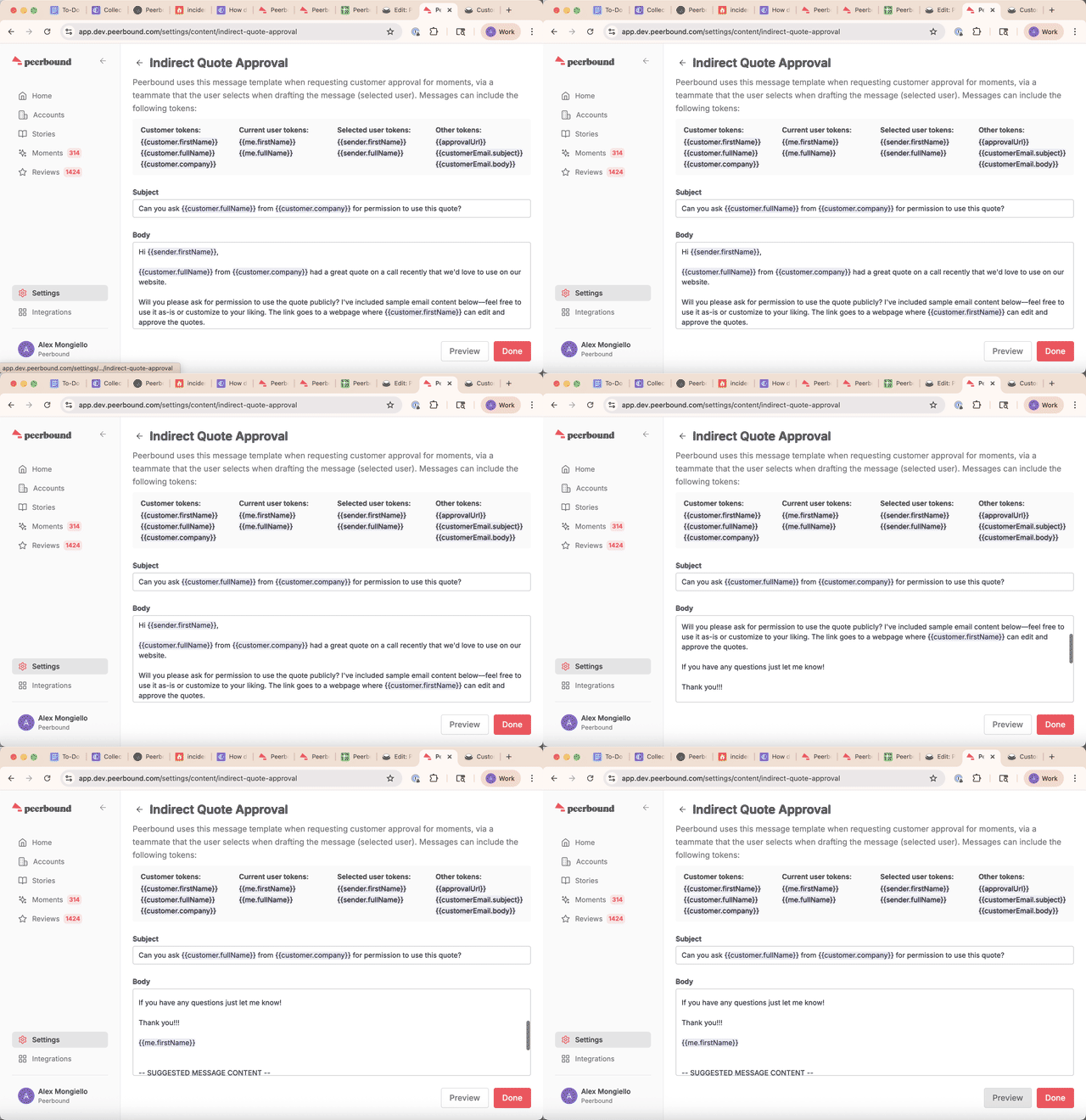
Click Preview to see how the message will appear before sending
Support
If you run into any issues, please reach out to us at support@peerbound.com or message us in Slack.
To help us troubleshoot faster, include screenshots of any errors or unexpected behavior.