Slack Integration Instructions
Last updated: July 1, 2026
This guide is for Slack admins who are connecting Peerbound to their company’s Slack workspace.
Step-by-Step Instructions
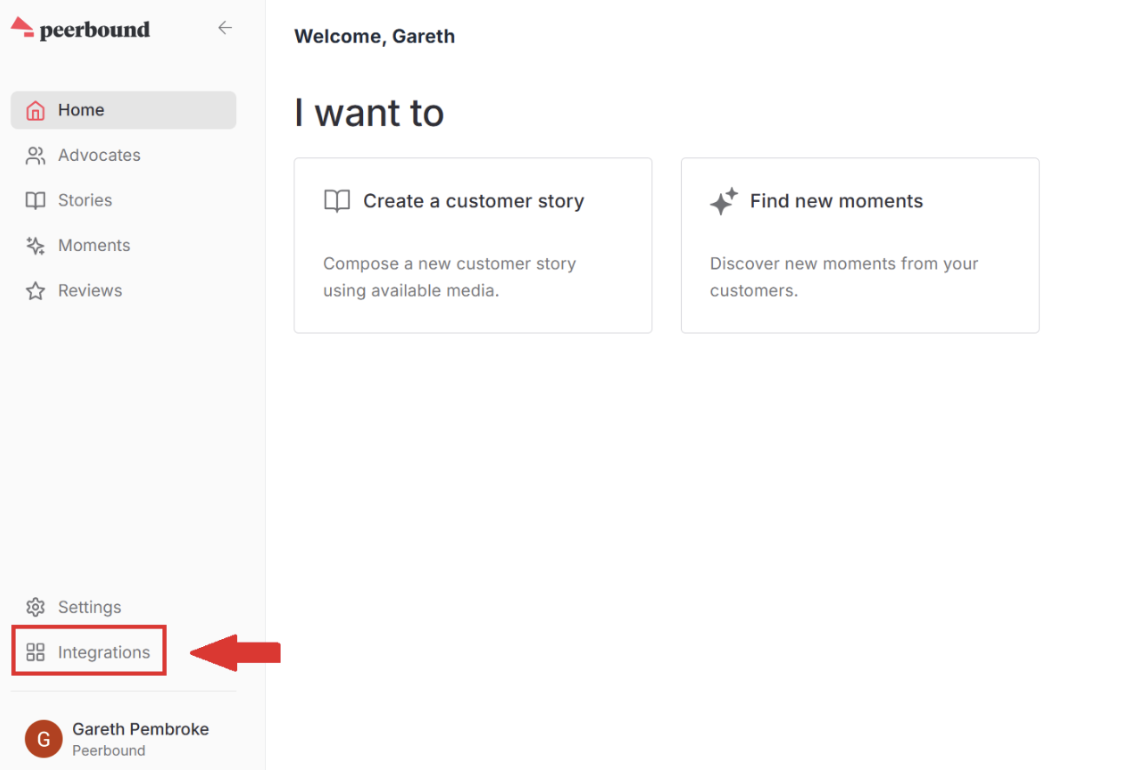
1. Open Integrations in Peerbound
In the Peerbound app, click Integrations from the bottom-left navigation menu.
2. Enable the Slack Integration
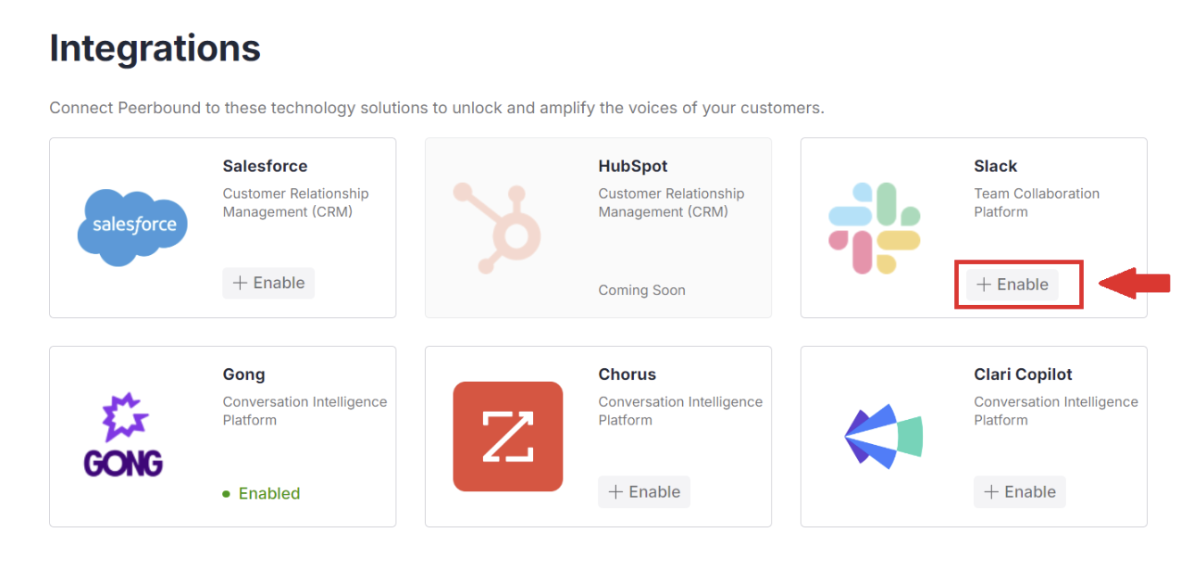
Find the Slack integration and toggle it on to enable.
3. Connect to Slack
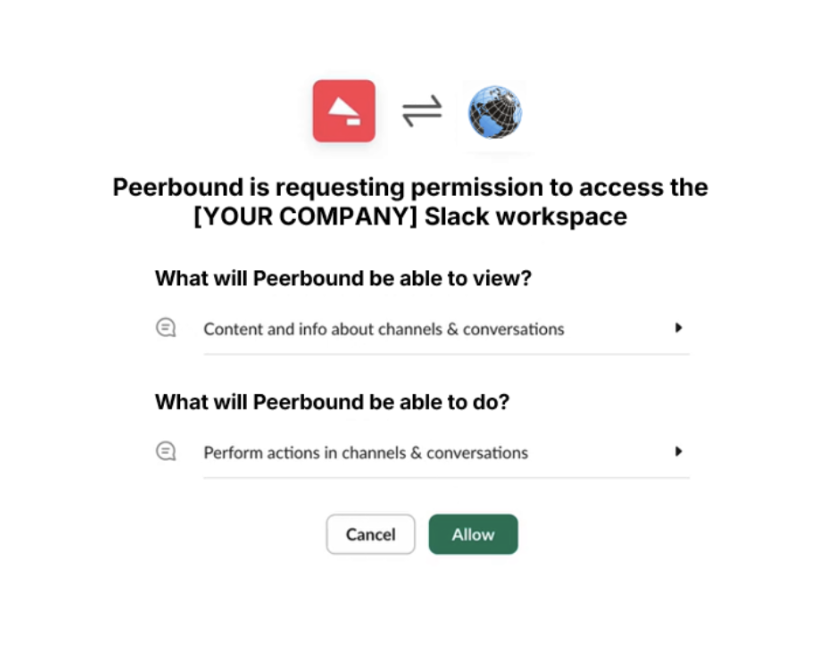
Click Connect to Slack. You’ll be redirected to Slack’s permissions screen.
Click Allow to grant Peerbound access to your Slack workspace.
4. Peerbound Slackbot is Installed
After permission is granted, the Peerbound Slackbot will be added to your Slack workspace.
5. Start Using the Slackbot
For instructions on how to use the Peerbound Slackbot—including sample queries and workflows—see 📄 Peerbound Slackbot Overview.
Installing Peerbound in Slack: Single vs. Multiple Workspaces
Peerbound can be installed in one of two ways, depending on your Slack environment:
Single Workspace: If your organization only needs Peerbound in one Slack workspace, the app can be installed directly into that workspace. No additional configuration is required.
Slack Enterprise Grid (Multiple Workspaces): If your organization uses Slack Enterprise Grid and wants Peerbound available across multiple workspaces, the app should be installed at the Enterprise Organization level. However, this does not automatically make it available in every workspace.
After Peerbound has been installed at the Enterprise Organization level, a Slack administrator must also enable it in each individual workspace where it should be used.
To add Peerbound to additional workspaces:
Sign in to Slack as a Slack administrator.
Navigate to Settings & administration → Manage apps (or Integrations, depending on your Slack admin interface).
Open Installed Apps.
Select Peerbound.
Click Add to more workspaces.
Choose the workspace(s) where Peerbound should be available and complete the installation.
Installing Peerbound at the Enterprise Organization level alone does not grant access in every workspace. The app must be added to each workspace individually. Only a Slack administrator with the appropriate permissions can perform this action.
Slack Access Permissions:
Information "Peerbound" can view
Content and info about channels & conversations
View basic information about public channels in your workspace (app action)
View basic information about private channels that "Peerbound" has been added to (app action)
View messages and other content in direct messages that "Peerbound" has been added to (app action)
Content and info about your workspace
View the name, email domain, and icon for workspaces "Peerbound" is connected to (app action)
View people in your workspace (app action)
View email addresses of people in your workspace (app action)
Actions "Peerbound" can take
Perform actions in channels & conversations
Send messages as @ Peerbound (app action)
View messages that directly mention @ Peerbound in conversations that the app is in
Perform actions in your workspace
Add shortcuts and/or slash commands that people can use (app action)