Microsoft Teams Integration Instructions
Last updated: June 16, 2026
This guide is for Microsoft Teams admins who are connecting Peerbound to their company’s Team's account.
Setting up the integration
1. Add the Peerbound application in Teams
Install the Peerbound Teams Application from the Teams Marketplace.
2. Connect the Microsoft Teams integration
Go to https://app.peerbound.com/integrations and have your Teams admin enable Teams.
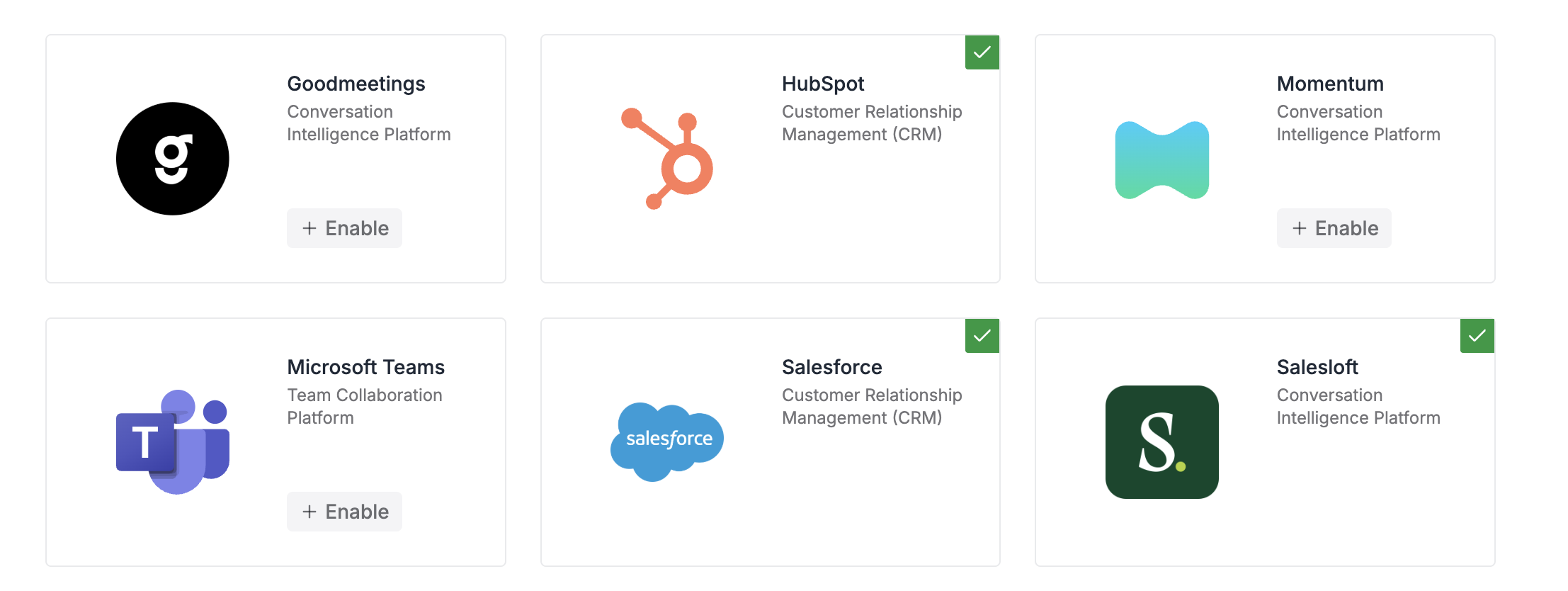
On the Microsoft Teams tile, select + Enable > Connect to Tenant. You’ll be redirected to the Microsoft Teams’s permissions screen.
Click Allow to grant Peerbound access to your Teams.
Permissions
The Peerbound Teams App requests the following permissions:
Sign in and read user profile. Allows users to sign-in to the app, and allows the app to read the profile of signed-in users. It also allows the app to read basic company information of signed-in users.
Read the names and descriptions of all channels. Read all channel names and channel descriptions, without a signed-in user.
Read all users' full profiles. Allows the app to read user profiles without a signed in user.