Peerbound x Chorus Integration Instructions
Last updated: July 16, 2025
This guide is for Chorus admins who are connecting Peerbound to their company’s Chorus account.
Step-by-Step Instructions
1. Log in to Chorus
Sign in to your Chorus account using your admin credentials.
2. Navigate to Settings
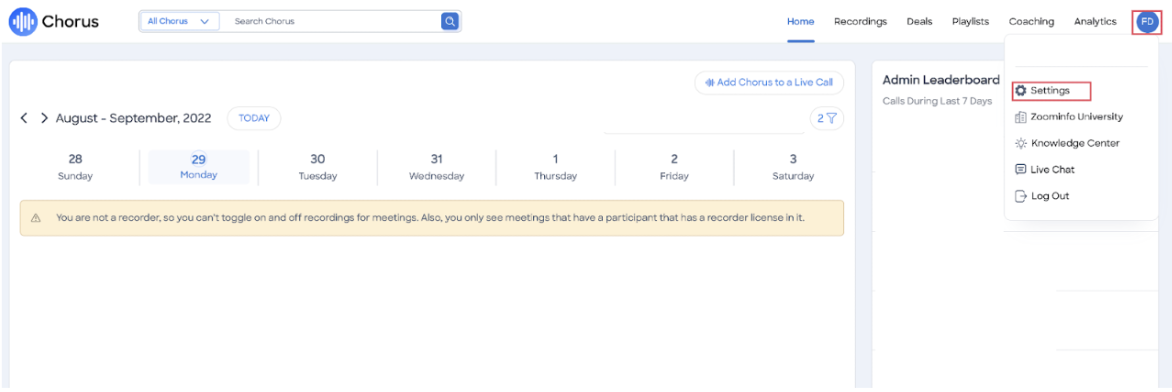
In the Chorus navigation menu, click your Profile icon, then select Settings.
3. Generate API Token
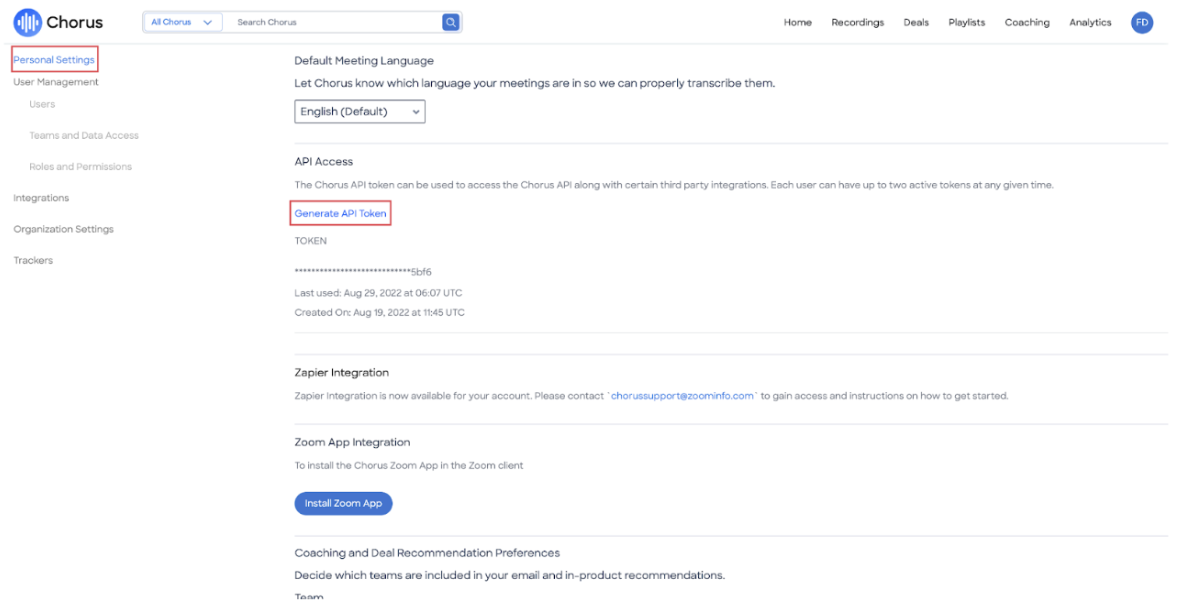
Scroll to the appropriate section and click Generate API Token.
Copy and save the API token for the next step.
4. Open the Integrations Page in Peerbound
In the Peerbound app, go to the Integrations page.
5. Enable the Chorus Integration
Click the + Enable button next to the Chorus integration.
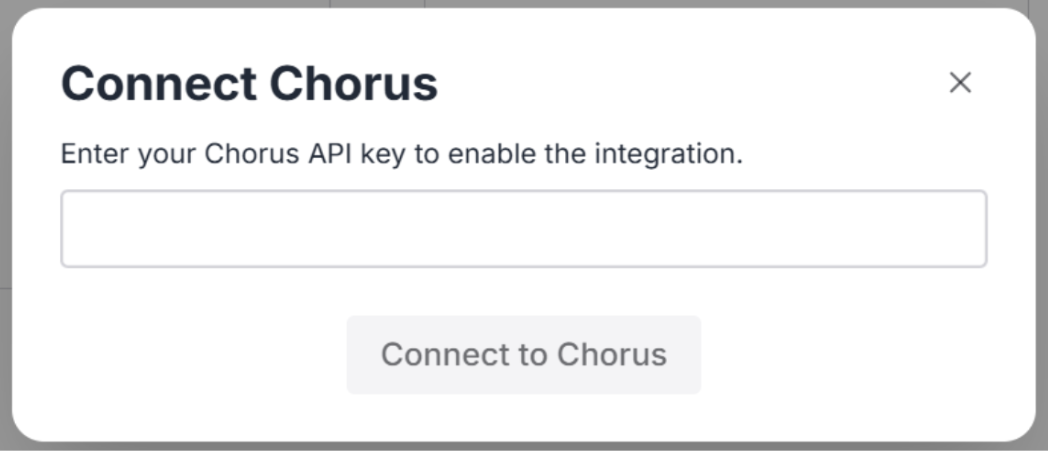
You’ll be prompted to enter your Chorus API Key.
6. Connect to Chorus
Paste your Chorus API Key into the field in Peerbound and click Connect to Chorus.
7. Integration Complete
Once connected, Peerbound will begin importing Chorus data and surfacing valuable customer proof. No further setup is required.
Support
If you run into any issues, please reach out to us at support@peerbound.com or message us in Slack.
To help us troubleshoot faster, include screenshots of any errors or unexpected behavior.