Peerbound x Avoma Integration Instructions
Last updated: August 7, 2026
This guide is for Avoma admins who are connecting Peerbound to their company’s Avoma account.
Step-by-Step Instructions
1. Open the Integrations Page in Peerbound
In the Peerbound app, navigate to the Integrations page.
2. Enable the Avoma Integration
Click the + Enable button next to the Avoma integration.
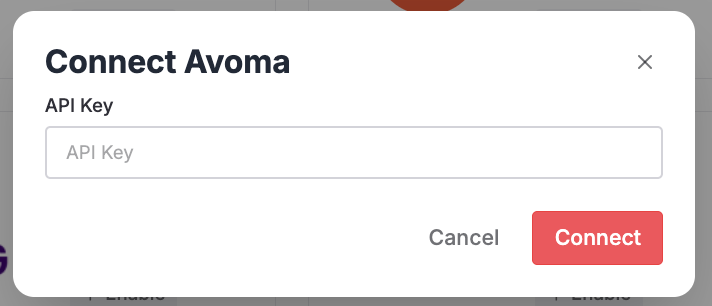
You will be prompted to enter your Avoma API Key.
3. Retrieve Your API Credentials from Avoma
Log in to your Avoma account using an admin account.
Navigate to Settings → Organization → Developer.
Click on Create API Key (and name your key by use case if prompted).
Copy and securely store the generated API key. It may not be displayed again.
4. Connect to Avoma
Paste the API Key into the corresponding fields in Peerbound and click Connect to Avoma.
5. Integration Complete
Once connected, Peerbound will begin syncing your Avoma data and identifying valuable customer proof. No further action is required.
Support
If you run into any issues, please reach out to us at support@peerbound.com or message us in Slack.
To help us troubleshoot faster, include screenshots of any errors or unexpected behavior.