Create Your First Customer Story in Peerbound
Last updated: August 21, 2025
Build polished, compelling customer stories from your call transcripts
Peerbound makes it easy to turn customer interviews into on-brand stories that can be used across sales, marketing, and success. Follow the steps below to create, edit, and share a story within the platform.
Step 1: Template
Set the foundation for your story
Start a New Story
Go to the Stories dashboard in Peerbound.
Click Add New and select Story draft.
Use the search bar to locate and select a relevant customer interview, then click Next.
You can also select Upload to add media from your device or YouTube
Enter Key Details
Fill in the required fields:
The customer account name
The customer’s domain (website)
Choose Your Story Format
The Peerbound format – Narrative-driven with automatically selected quotes and section headers
The Standard format – Traditional Challenge–Solution–Results format
Click Next to allow Peerbound to analyze the transcript and build an initial outline.
Step 2: Outline
Refine the structure and content
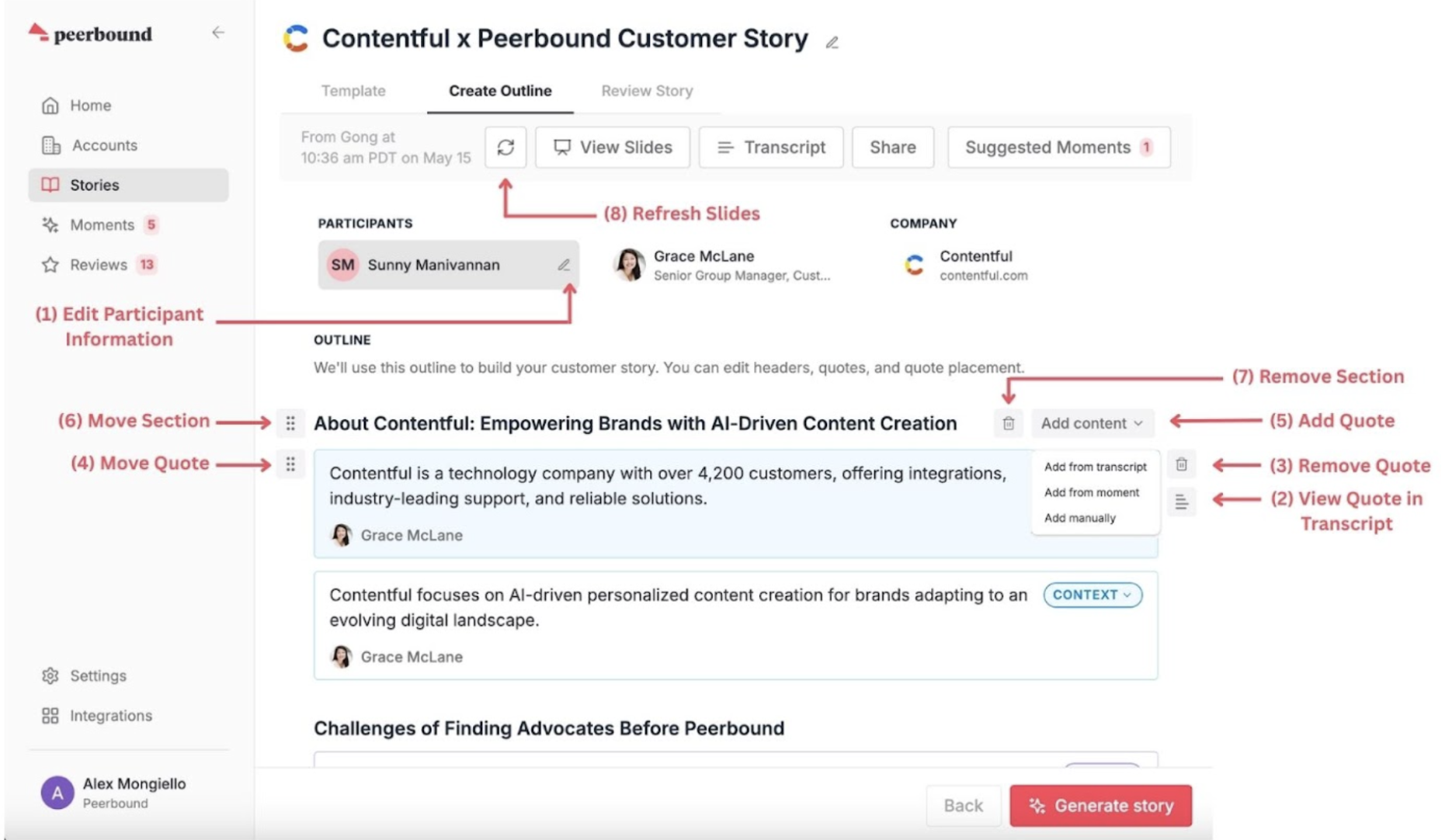
Edit Participant Information
Navigate to the Participants section:
Click the pencil icon next to a name to correct spelling or add a job title
(1).
Review and Verify Quotes
Hover over a quote and click the transcript icon to view the quote in its original context (2).
Edit, Remove, Move, or Add Quotes
You can:
Edit: Click directly on the quote to make changes
Remove: Click the trash can icon
(3)Move: Click the six-dot icon on the left and drag
(4)Add
(5):From transcript: Highlight a quote and click “Add Quote”
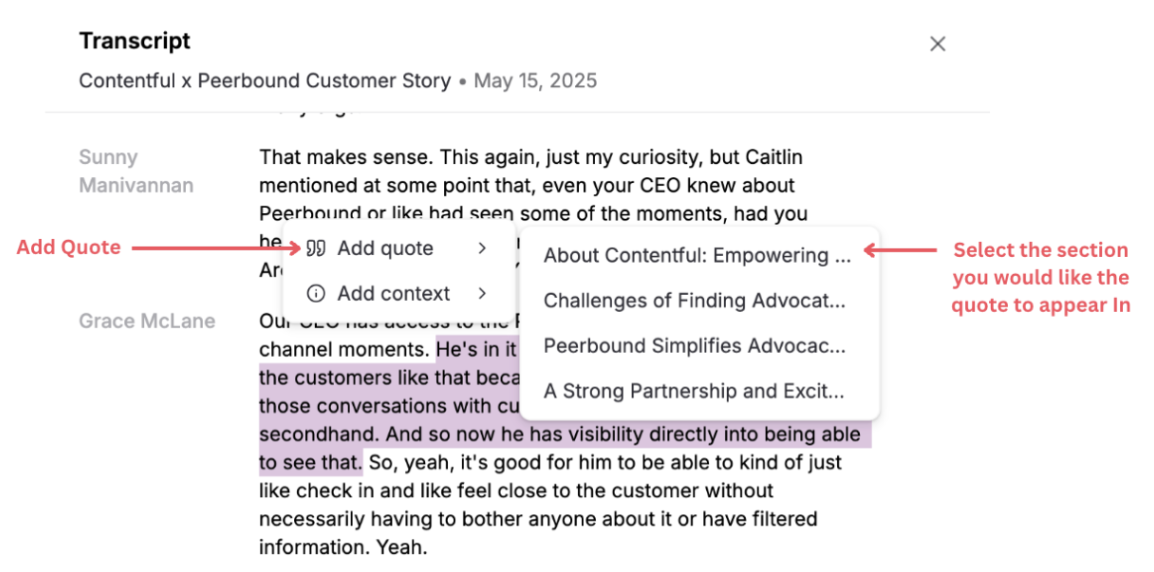
From Moments: Browse high-value insights tied to the interview
Manually: Add your own quote or text block
Move, Add, or Remove Sections
Move: Use the six-dot handle to reposition a section
(6)Add: Click + Create New Section at the bottom of the outline
Remove: Hover and click the trash icon on the right
(7)
Enrich with Moments
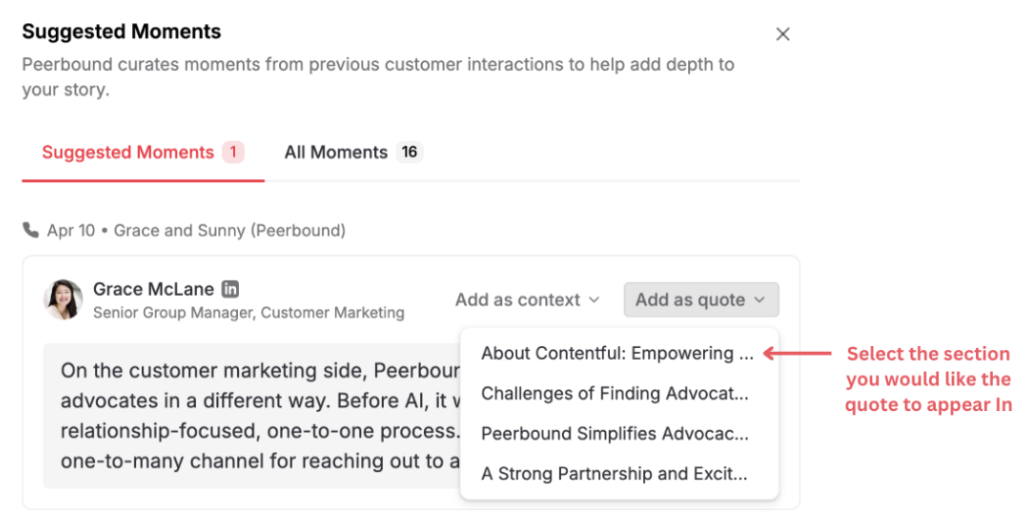
Click Suggested Moments in the top-right
Browse suggested insights or view all from the customer account
Click Add as Quote or Add as Context, and assign to a section
Finalize the Outline
Once the structure is complete, click Generate Story in the bottom-right.
Peerbound will compile a polished first draft based on your edits.
Step 3: Review Story
Polish, repurpose, and share
Manual & AI Editing
Click on any text to edit manually
For AI-powered edits:
Click Edit in the top toolbar
Enter your instructions (e.g., “Make this more concise” or “Rewrite as a LinkedIn post”)
Click Update Story
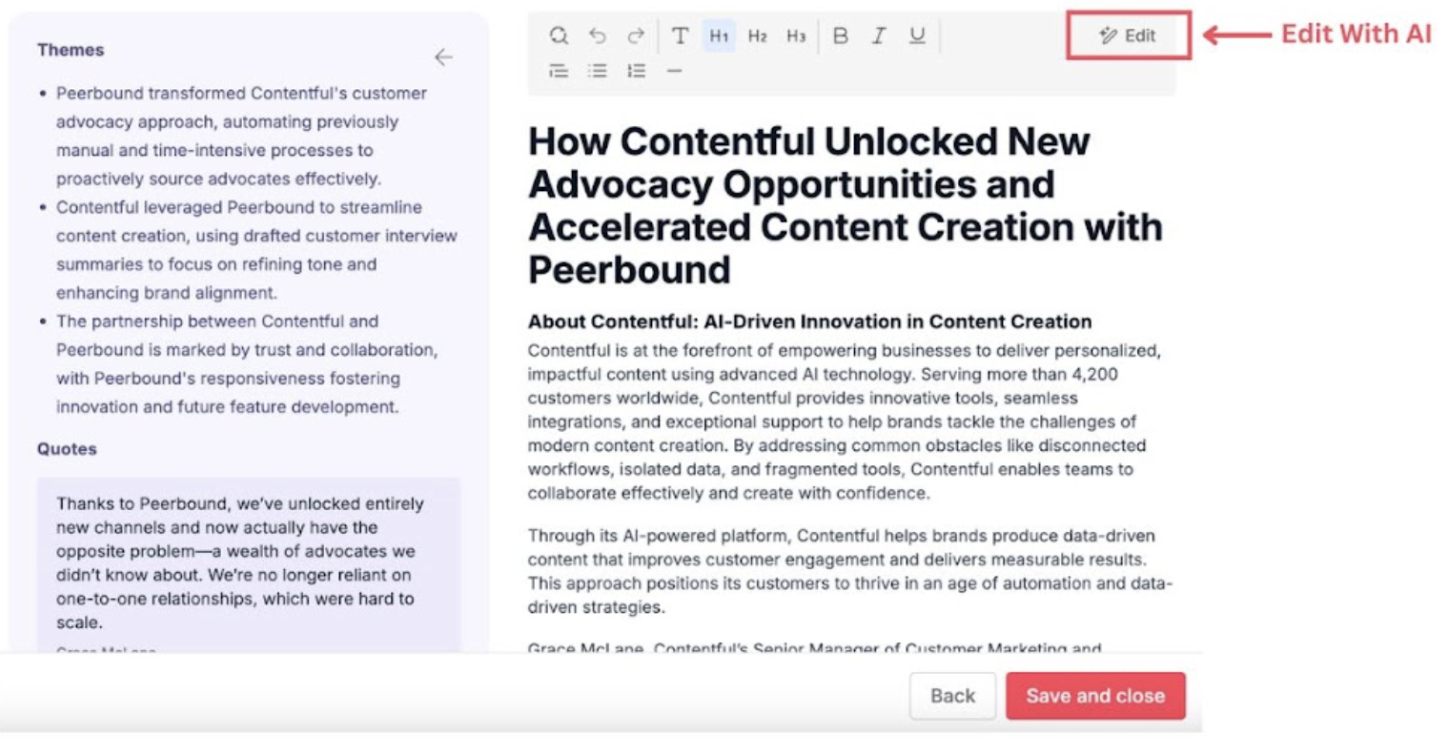
Use Edit with AI to repurpose your story into blog posts, email copy, or social content.
Story Summary & Quote Highlights
Click the arrow on the left of the draft panel to view a summary and all featured quotes
Finalize and Share
Save and Close when satisfied
View Slides: Generate a Google Slides version
Click Refresh Slides
(8)if you’ve made recent changes
View Transcript: Access the original conversation
Share Story: Use Peerbound’s built-in sharing tools
Support
If you run into any issues, please reach out to us at support@peerbound.com or message us in Slack.
To help us troubleshoot faster, include screenshots of any errors or unexpected behavior.