Quote Approval Workflow
Last updated: July 15, 2025
Easily request and track approvals for customer quotes
Peerbound makes it simple to get approval for powerful customer quotes captured from calls. Use the steps below to select, send, and secure approval.
Step-by-Step Instructions
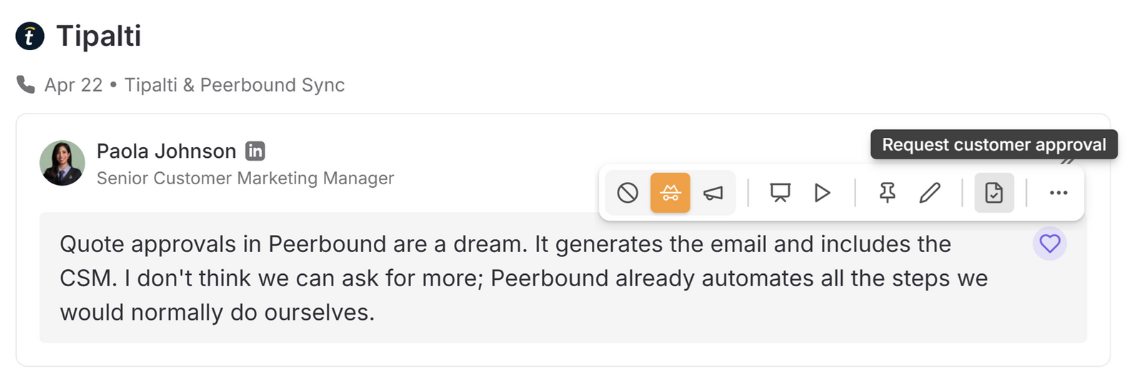
1. Select a Quote from the Moments Page
Navigate to the Moments section in Peerbound.
Hover over any quote you'd like to approve
Click Request Customer Approval in the Moments toolbar to begin the approval workflow
2. Batch Approve Multiple Quotes
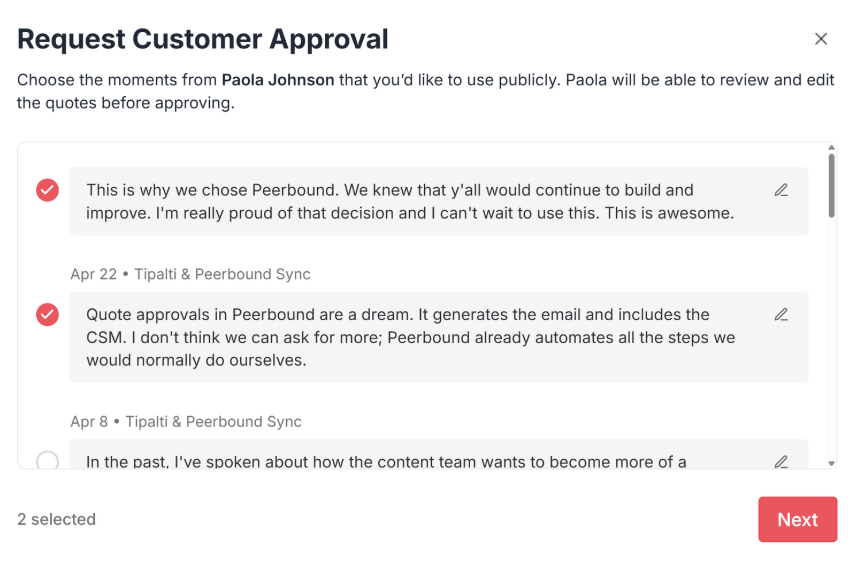
You can request approval for more than one quote at a time:
Add a checkmark next to each additional quote
This lets you send a single approval request for a group of related quotes
3. Choose Who Sends the Request
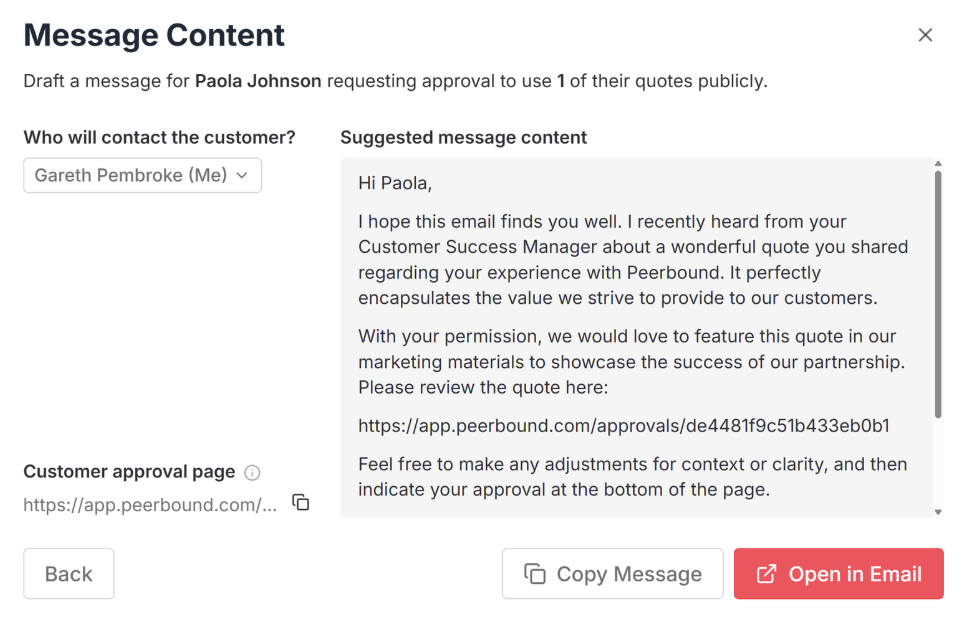
Decide who should send the approval request:
Send it yourself
Or select anyone who was on the call to send the request, using a pre-drafted note
Peerbound makes it easy to personalize the message before sending
4. Get Approval via Branded Microsite
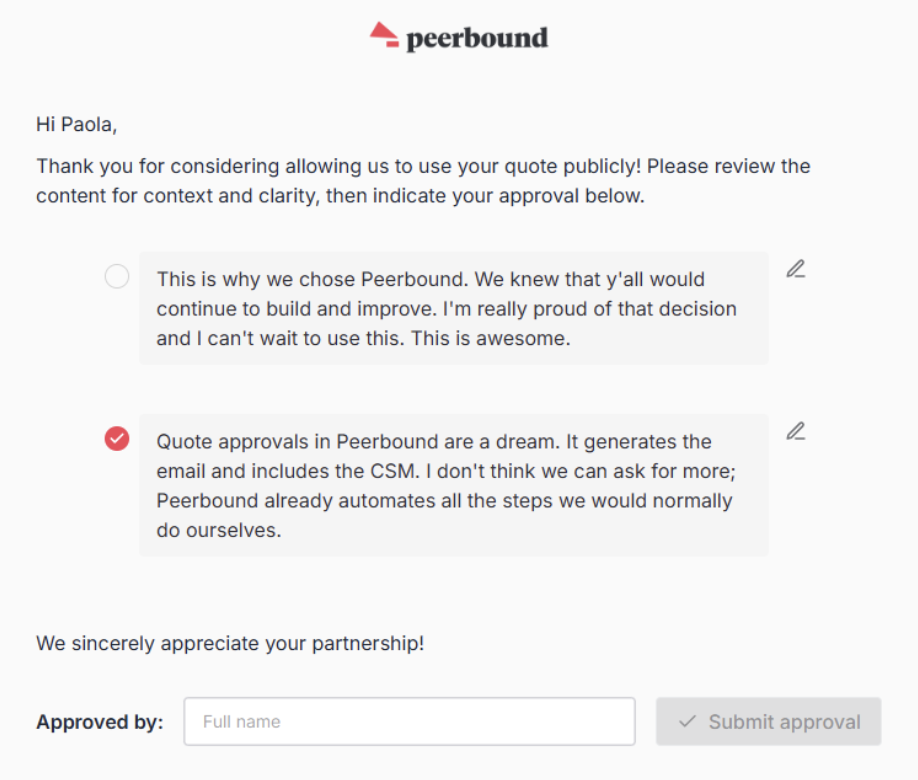
Customers will receive a link to your branded microsite, where they can:
Edit the draft quote text (if needed)
Select which quotes they are comfortable approving
Submit their approval directly
Support
If you run into any issues, please reach out to us at support@peerbound.com or message us in Slack.
To help us troubleshoot faster, include screenshots of any errors or unexpected behavior.