Salesforce Integration Instructions
Last updated: February 13, 2026
Connecting Peerbound to Salesforce
Follow these steps to connect Peerbound to your company’s Salesforce account:
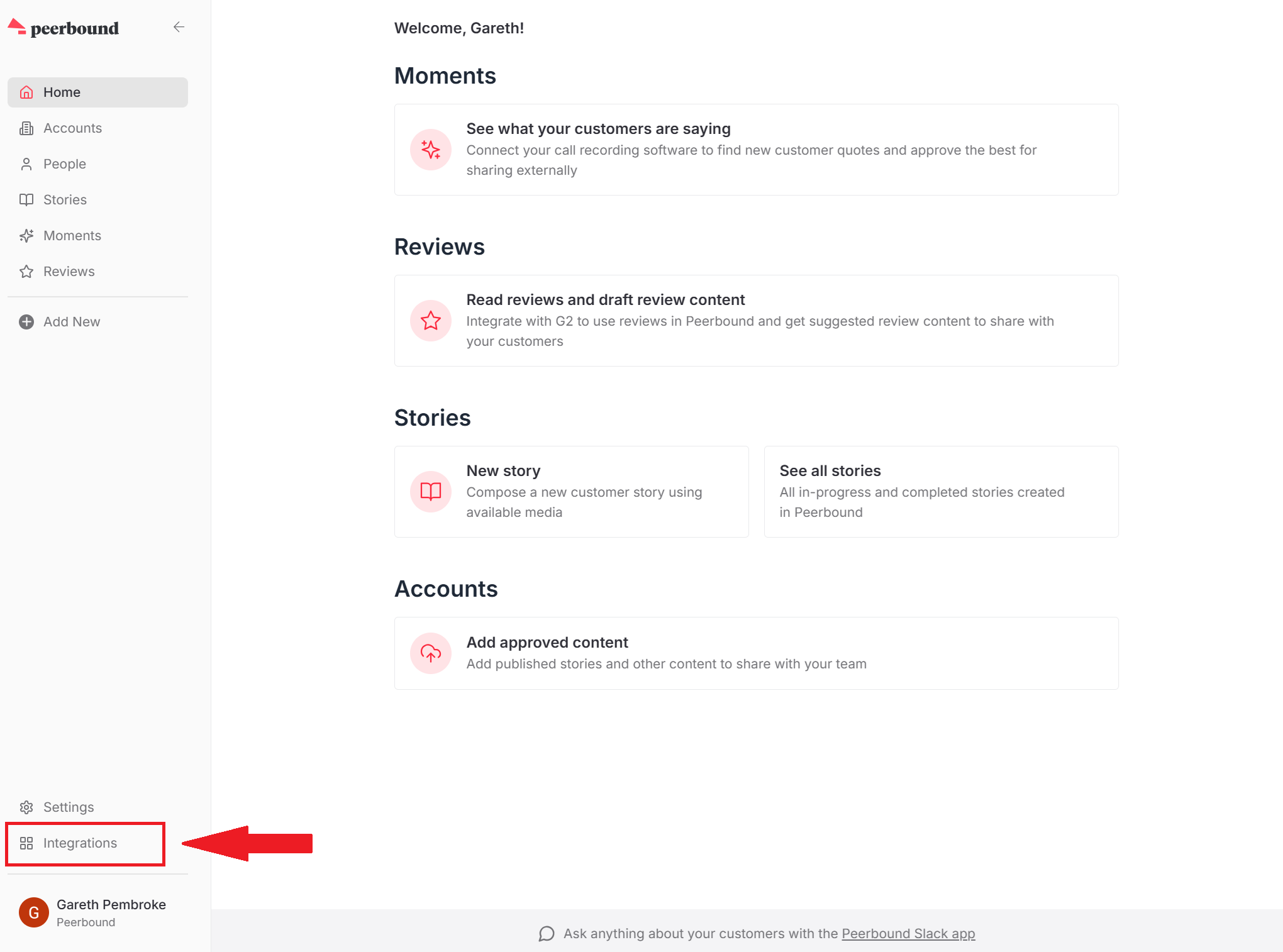
Navigate to the Integrations Page
In the Peerbound app, go to the Integrations Page.
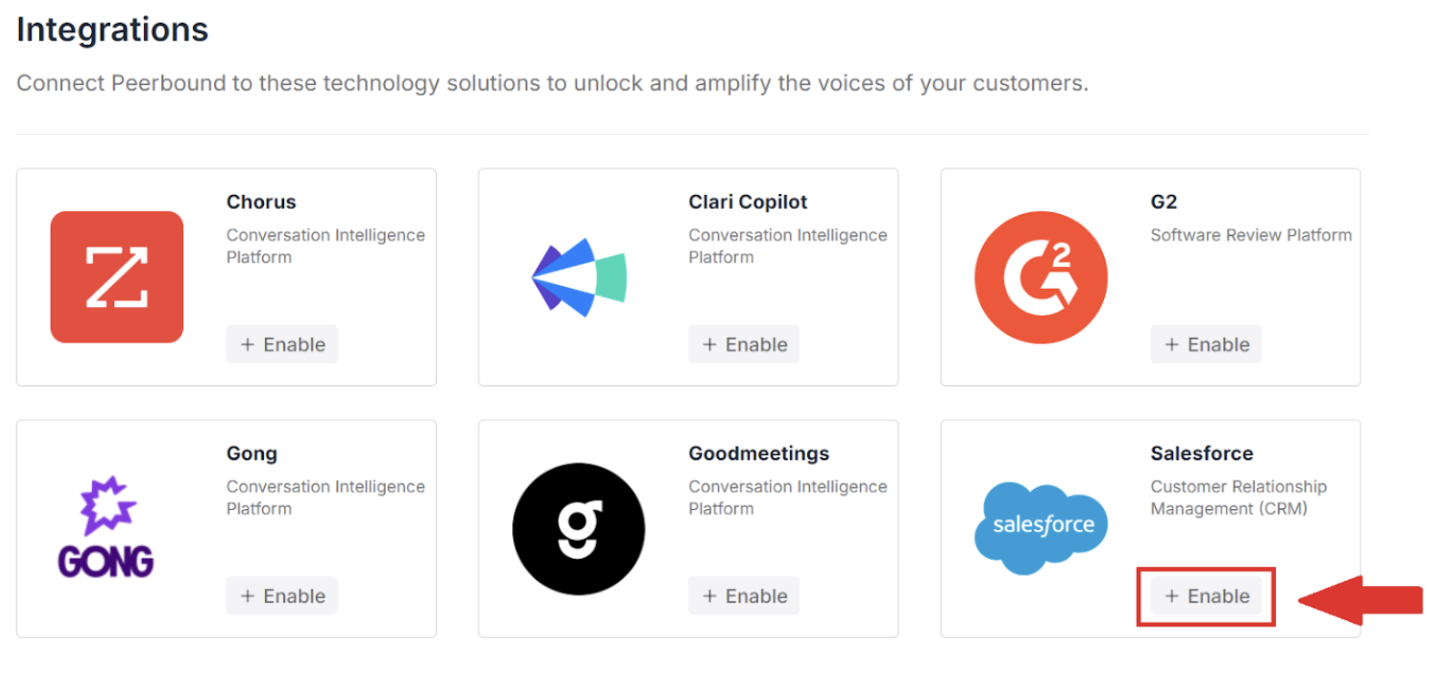
Enable Salesforce Integration
Click the Enable button within the Salesforce section.
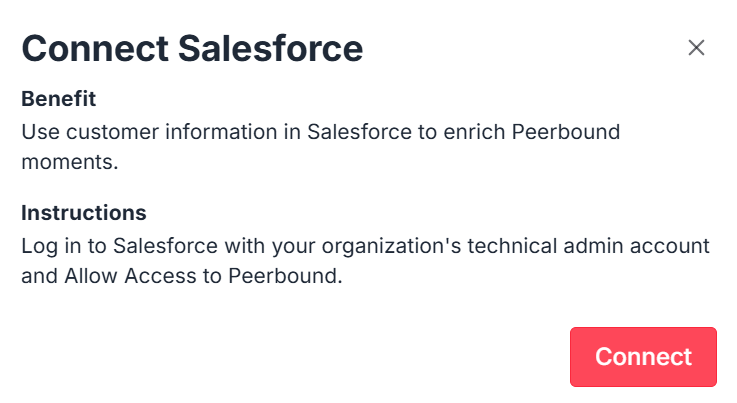
Connect to Salesforce
Click ConnectIf you’re not already signed in to Salesforce in your browser, you’ll be prompted to log in.
Authorize Access
Within Salesforce, you’ll see an Allow Access screen for Peerbound. Click Allow.
Note – Required Salesforce Permissions
If you’re enabling this connection using an Integration User (least-privileged) account, make sure the following are set for this account:
Approve Uninstalled Connected Apps (required to complete the initial OAuth authorization)
API Enabled (required for Peerbound to access Salesforce via API)
View All Users (required to sync Salesforce users)
Confirmation
You’ll be redirected back to Peerbound.
The integration is now active — you can close the modal.
Common Errors
If you see an OAuth error like:
“We can't authorize you because of an OAuth error… OAUTH_APPROVAL_ERROR_GENERIC…”
the Salesforce user completing the connection likely does not have permission to approve the connected app. This often happens when using a least-privileged “integration user” that is not a System Administrator.
To complete the setup, ensure the connecting user has Approve Uninstalled Connected Apps permissions enabled.
Salesforce Access Permissions
OAuth Tokens and Scopes
OAuth tokens authorize access to protected resources. Connected apps, such as Peerbound, receive tokens on behalf of a client after authorization.
Salesforce Scopes define the type of protected resources that Peerbound can access. Peerbound will need permissions to access to the following Salesforce Scopes:
apirefresh_token,offline_access
More details on these scopes are below and can be found on Salesforce here.
Salesforce describes these Scopes as access to Manage user data via APIs and Perform requests at any time.
Manage user data via APIs (
api)
Allows access to the current, logged-in user’s account using APIs, such as REST API and Bulk API 2.0.
This scope also includes chatter_api, which allows access to Connect REST API resources.
Perform requests at any time (
refresh_token,offline_access)
Allows a refresh token to be returned when the requesting client is eligible to receive one.
With a refresh token, the app can interact with the user’s data while the user is offline.
This token is synonymous with requesting offline_access.
Object and field requirements
NOTE: If your organization is using a custom Salesforce field to replace any of the below fields, please add the custom field to the permissions set.
Account
IdLastModifiedDateSystemModstampIsDeletedNameTypeWebsiteIndustryAnnualRevenueOwnerIdNumberOfEmployeesBillingAddressCustom Logo, Reference, or Marketing Rights field [if available]
Contact
IdLastModifiedDateSystemModstampIsDeletedAccountIdFirstNameLastNameEmailTitleDepartment
Opportunity
IdLastModifiedDateSystemModstampIsDeletedAccountIdContactIdOwnerIdNameStageNameCloseDateDescriptionAmountProbabilityTypeNextStepIsClosedIsWonFiscal
User
CompanyNameDepartmentEmailFirstNameLastNameNameTitleUserTypeIsActive