Configuring your CRM
Last updated: July 15, 2026
Customize how your CRM data powers filters, customer definitions, and context in Peerbound
Peerbound integrates directly with Salesforce and HubSpot to help your team surface relevant customer proof, define account types, and personalize Slackbot responses. Once your integration is connected, you can configure how fields are imported and used across the platform.
Accessing your CRM Settings
Open Settings and select the Salesforce or HubSpot tab
From the Peerbound sidebar, navigate to Settings to manage your configurations.
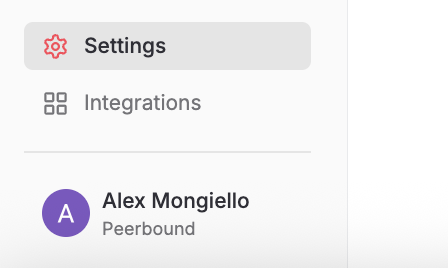
Click the Salesforce or HubSpot tab to configure imported fields, customer definitions, logo rights, and contextual data used throughout Peerbound.


Import Fields
You can import up to 20 fields from you CRM into Peerbound. These fields can be used to:
Filter content on the Moments and Accounts pages and Slack/Teams Moment digests
Provide additional context in the Slackbot
Power Proactive Proof delivery
Before you can use any fields in Peerbound, they must first be imported. Make sure all the fields you need are imported here before continuing with this section.
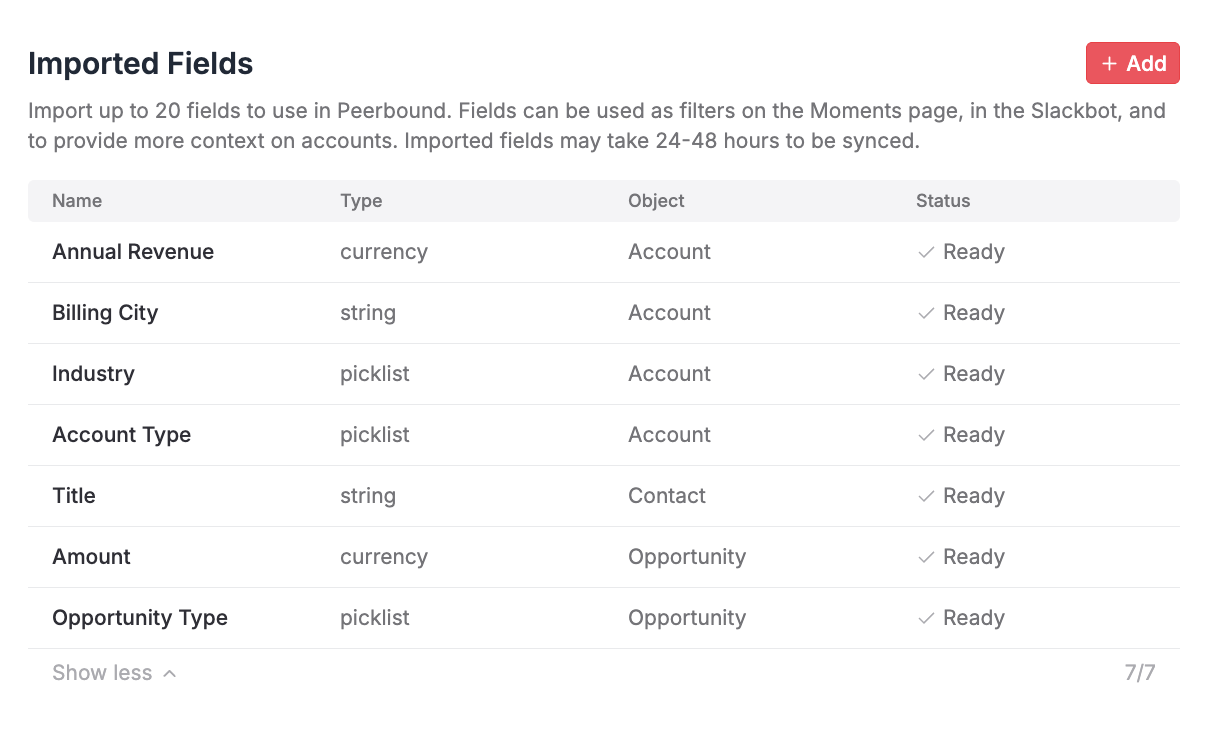
To import a field:
Click
+ AddSelect up to 20 fields from your CRM schema
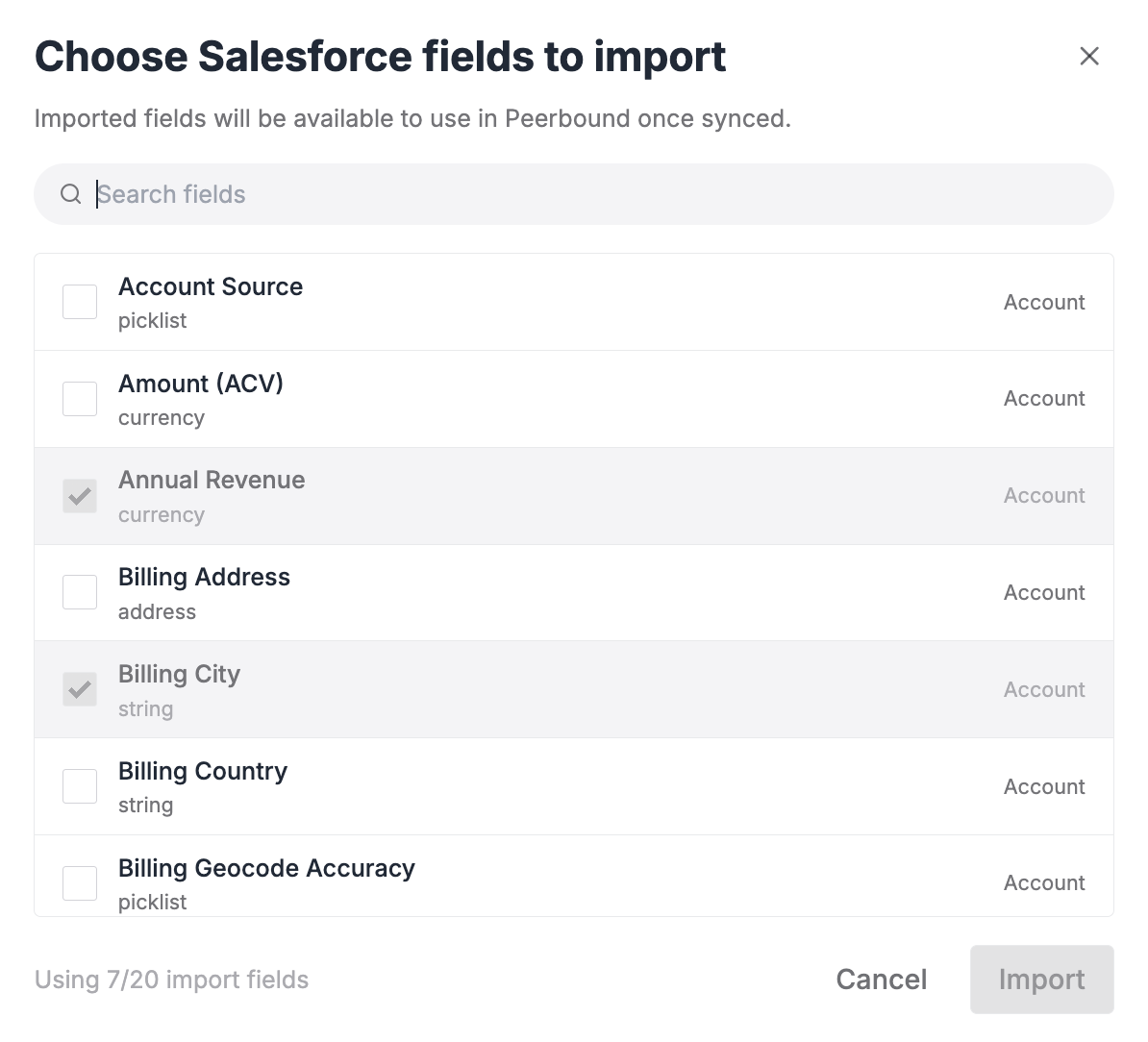
Press
ImportOnce synced, it will appear with a status of✓ Ready
You can start configuring the rest of this document while the fields are syncing.
Page Filters
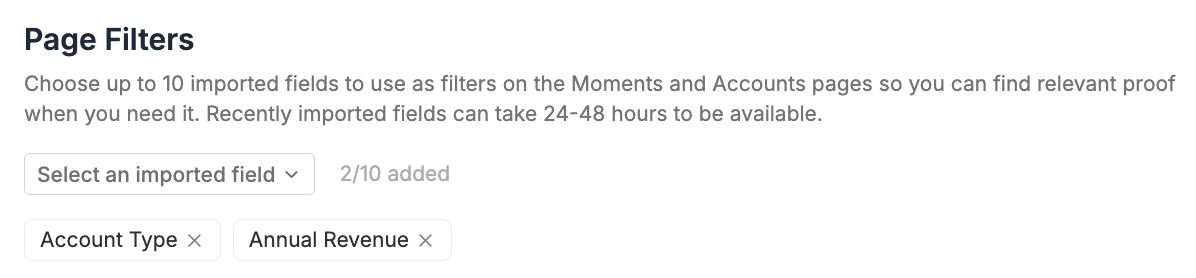
Choose up to 10 imported fields to use as filters on the Moments page, Accounts page, and Slack/Teams digests. This allows teams to quickly find the most relevant proof based on account attributes like industry, region, or revenue.
To add a filter:
Select from your imported fields using the dropdown
Added filters will appear as tags (e.g., Account Type, Annual Revenue)
Customer Definitions
Define how Peerbound will distinguish between customers, prospects, and former customers. This ensures the Slackbot and Proactive Proof only surface approved content from current customers.
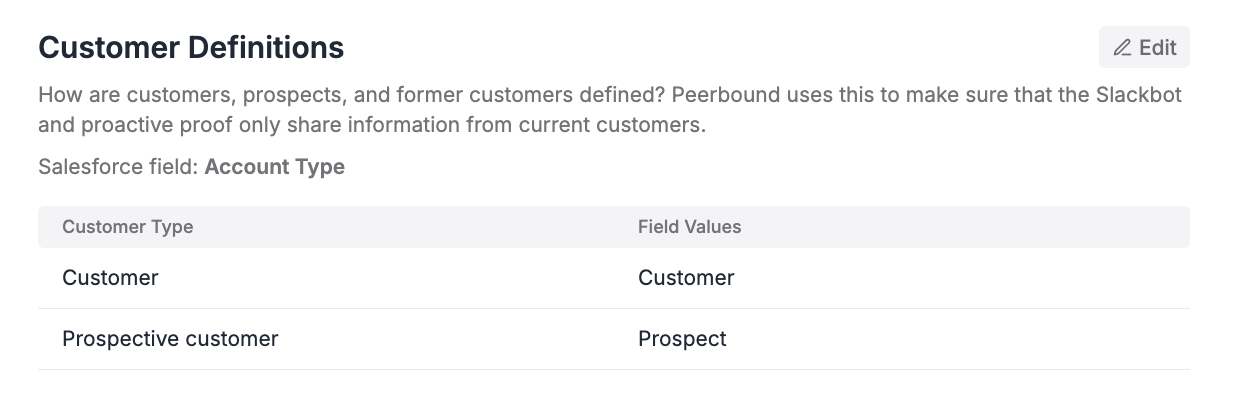
To edit the mappings, click Edit in the top right of the Customer Definitions section.
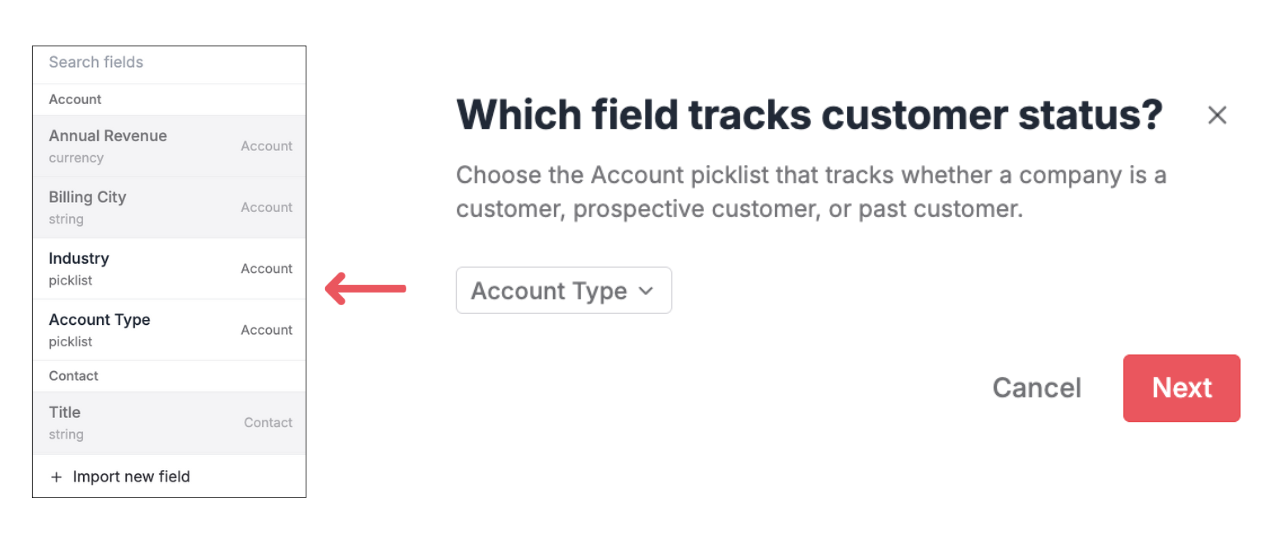
Choose a field (e.g., Account Type) or import a new field then click
Next
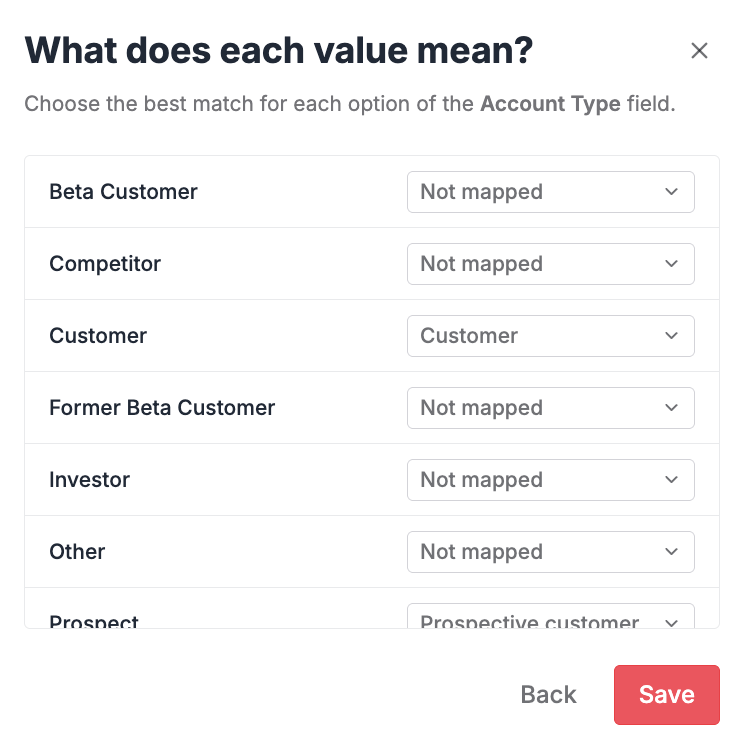
Map values to Peerbound categories then click
Save:
Logo Rights
Identify the CRM field that indicates whether your team has permission to use a customer’s logo publicly.
Click
+ Add Field
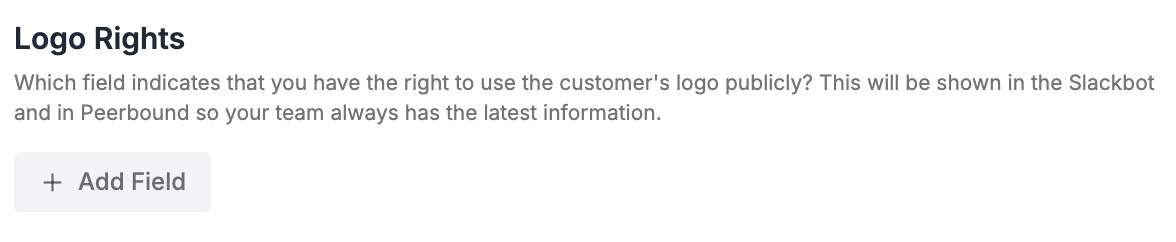
Choose the appropriate field from your imported CRM fields
This setting is reflected in Peerbound and the Slackbot to ensure approved usage.
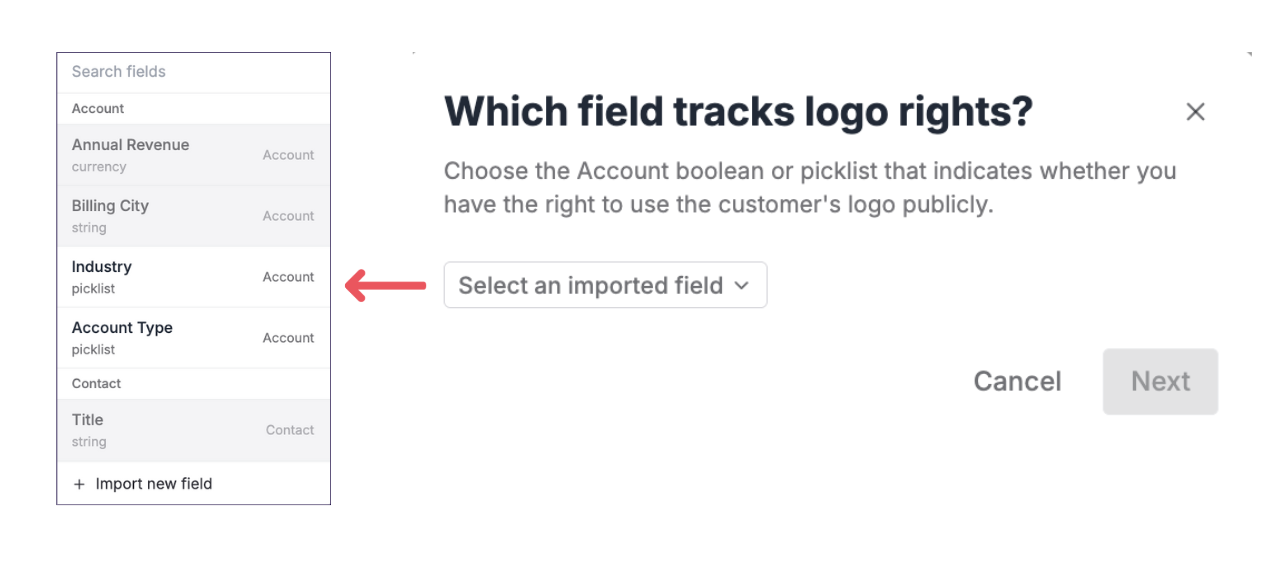
After selecting an imported field, hit
Next.
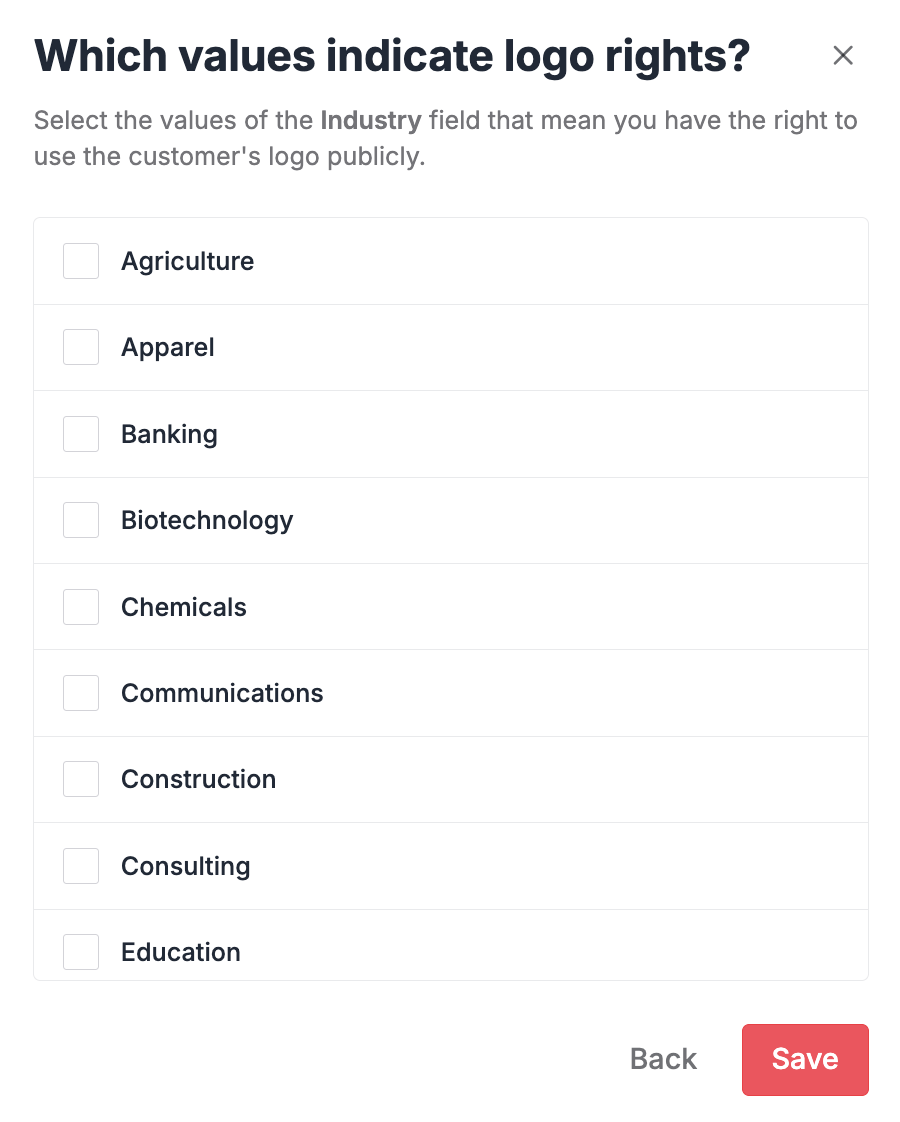
Select the values of the industry filed that mean you have the right to use the customer's logo publicly.
Customer Segments
In this section, you can now choose which CRM field determines the account size (i.e. Enterprise, SMB, Startup). Peerbound will be used to identify similar customers in Slack and proactive proof. We will prioritize larger customer is Slack results based on the order you select in this section.
Select Add Field and pick the CRM field that will identify the segment for each account.
Click Next and order the field values by largest to smallest. Fields that don't fit into this by size can be put in the Other section.
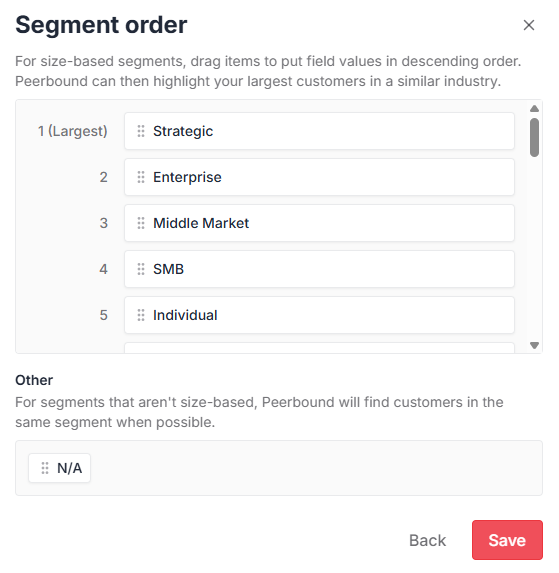
Click Save and Peerbound will then use this categorization to inform similar customers for Proactive Proof and similar accounts for Slack searches.
Customer Location
Select the address field from your CRM that represents the customer’s location.
This enables Slackbot support for location-based queries (e.g., “Do we have proof from customers in the UK?”).
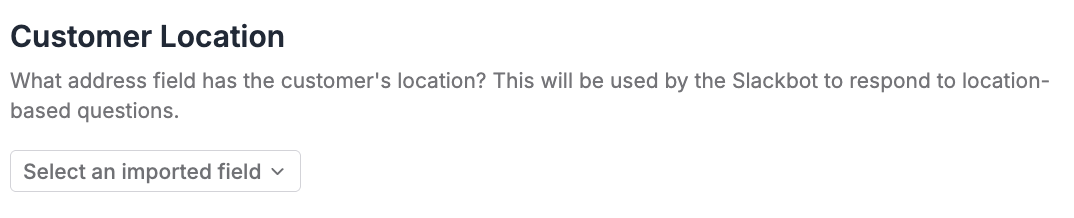
Use the dropdown in the Customer Location section to configure this setting.
Customer Context
This section allows you to add up to five fields that provide information about a prospect. These will be shown when hovering over a prospective customer’s name in Peerbound.
Suggested fields: region, ACV, account owner, segment
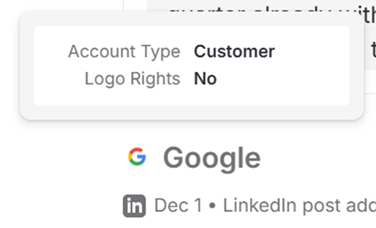
Prospect Context
Similar to the Customer Context section above, this allows you to add up to five fields that provide information about a prospect. These will be shown when hovering over a prospective customer’s name in Peerbound.
Win Context
Choose up to three fields from your CRM that provide insight into why a deal was won. This context powers smarter Slackbot responses and Proactive Proof suggestions.
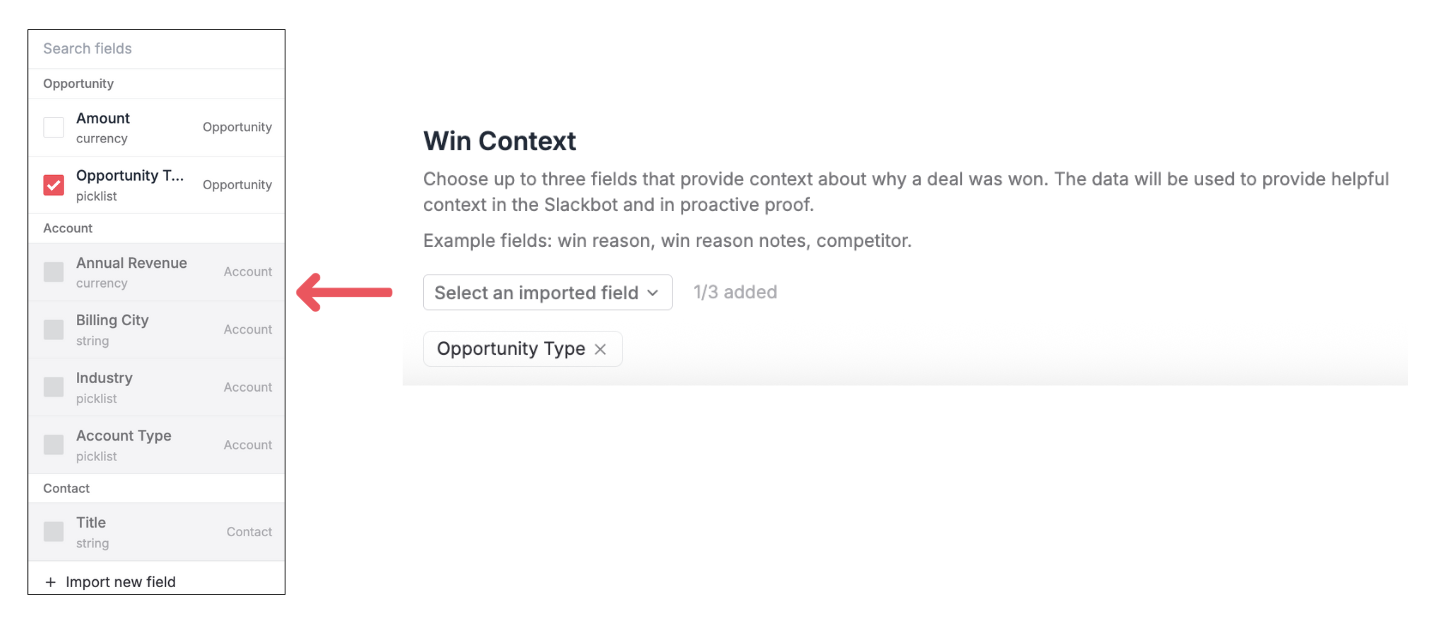
Example fields: Win reason, Win reason notes, Competitor
Use the dropdown to select or import up to 3 relevant fields
These fields will be used to surface more targeted quotes and stories
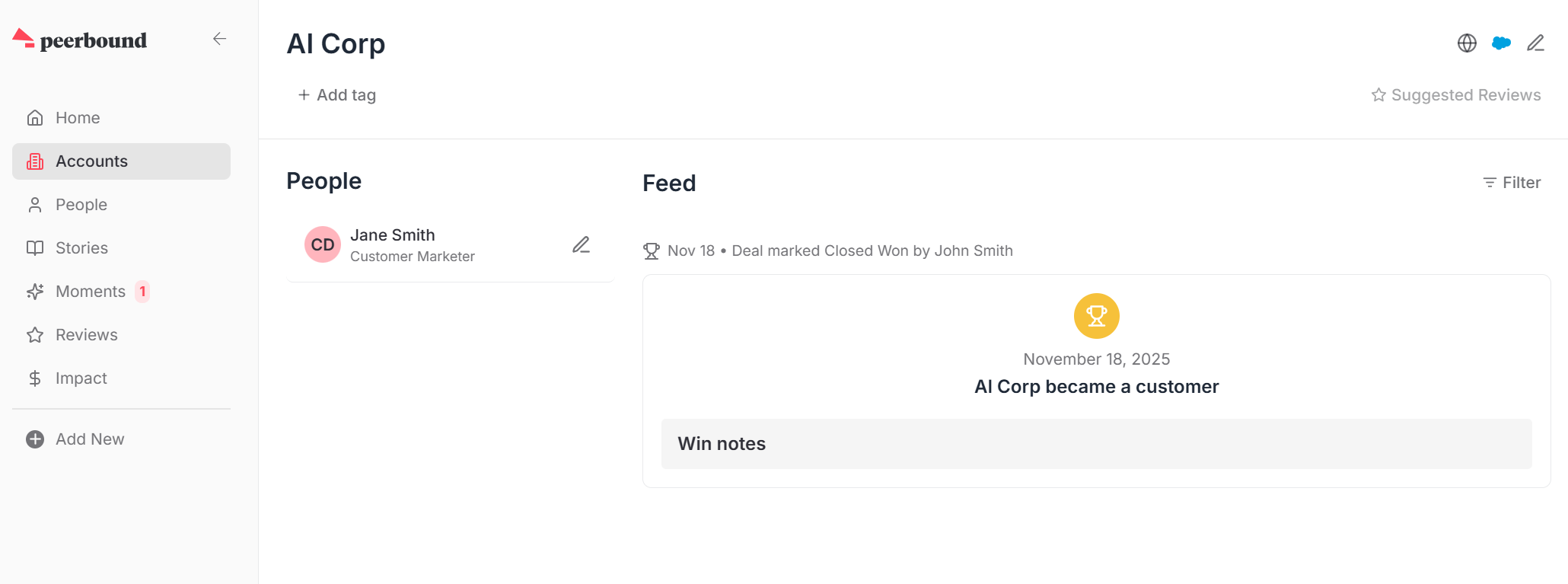
You can also see the selected fields along with win details when you view an individual account within Peerbound.
Customer Products and Prospect Products
The Opportunity Products (Opportunity object) field should capture the product(s) being pitched in a deal. These values are compared against the Customer Products (Account object) field to determine which customer proof is most relevant for that opportunity.
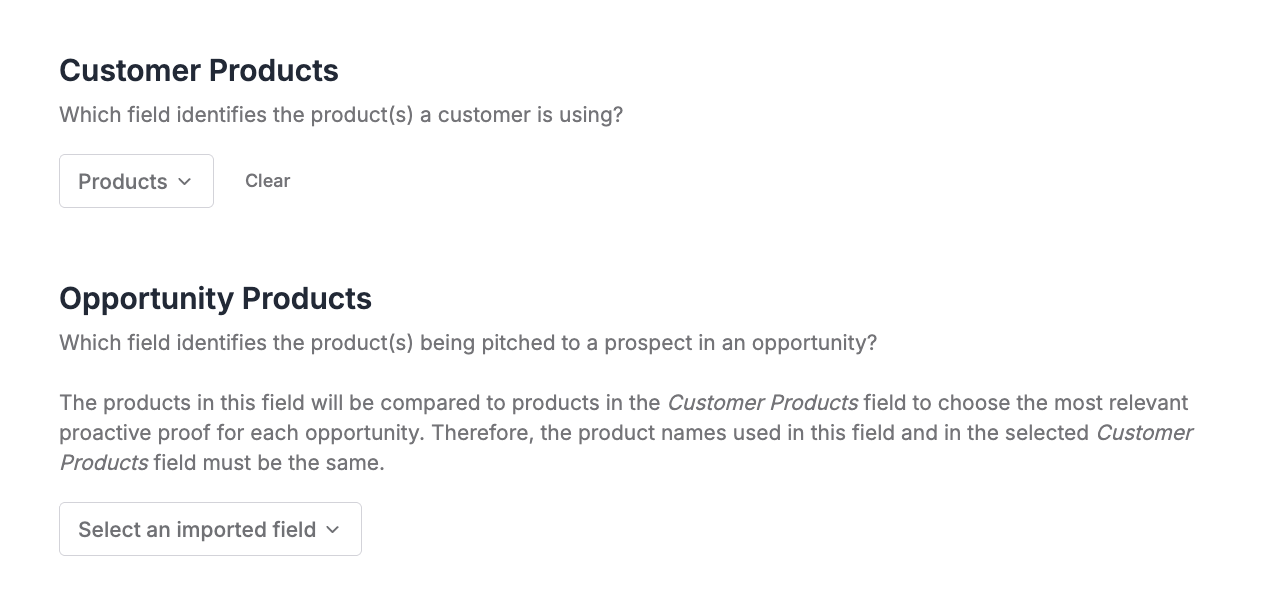
Important: The product names in both fields must match exactly for this comparison to work correctly.
Best practices:
Use fields with a limited set of distinct product names (ideally 2–20)
Avoid fields with hundreds of SKUs or highly granular variations, as this can lead to overly restrictive filtering and fewer relevant results
AI Chat Filters
Customers can now select additional CRM account fields to make accessible when querying Slack, Teams and our MCP. Once a field is enabled, teams can query using that attribute alongside standard filters like industry, region, or deal size.
For example, an organization that tags accounts with a custom attribute in their CRM can select that field on the CRM Settings page in Peerbound. From there, sales reps can query for proof or existing accounts sharing that same attribute, such as asking for quotes from a given region within a certain deal size range.

Important: Customer status, logo rights, segments, location, and products are automatically available and don't need to be selected here.
Support
If you run into any issues, please reach out to us at support@peerbound.com or message us in Slack.
To help us troubleshoot faster, include screenshots of any errors or unexpected behavior.