Adding External Quotes
Last updated: July 17, 2025
Manually add a quote from sources like Slack, LinkedIn, or email to your Peerbound library
You can capture external quotes that didn’t originate from Peerbound sources—such as shoutouts, customer emails, or public social posts—so your team can easily surface and reuse them across sales and marketing efforts.
Step 1: Add a New Moment
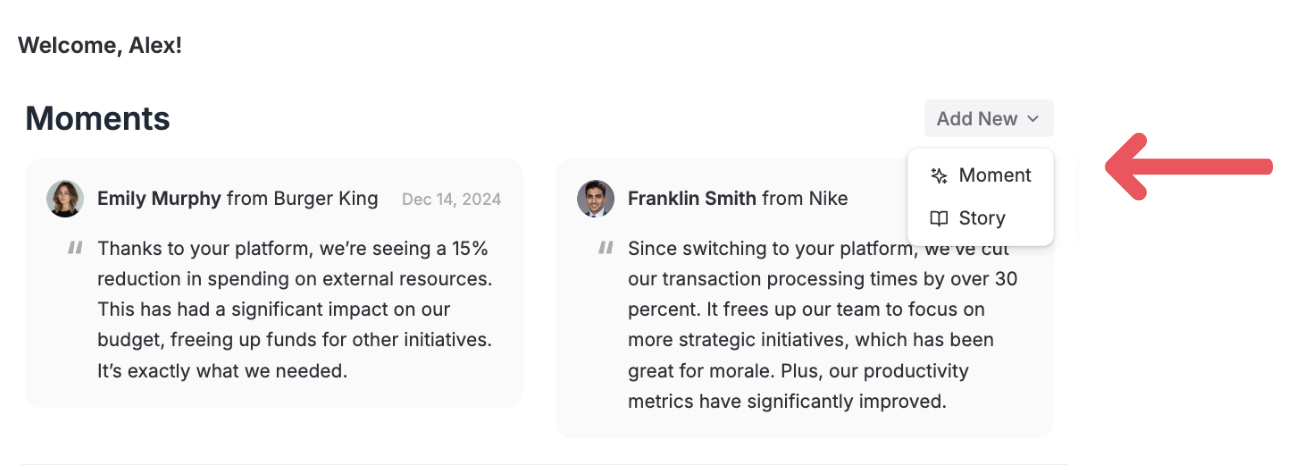
Navigate to the Peerbound Home page
In the top-right corner, click
Add NewSelect Moment from the dropdown menu to create a new external quote
Step 2: Fill Out the Quote Details
1. Quote Text
Enter the quote as stated in the external source.
2. Company
Use the dropdown to select the customer account the quote came from.
3. Contact
Choose the individual who made the statement. If they’re not listed, you can add them manually.
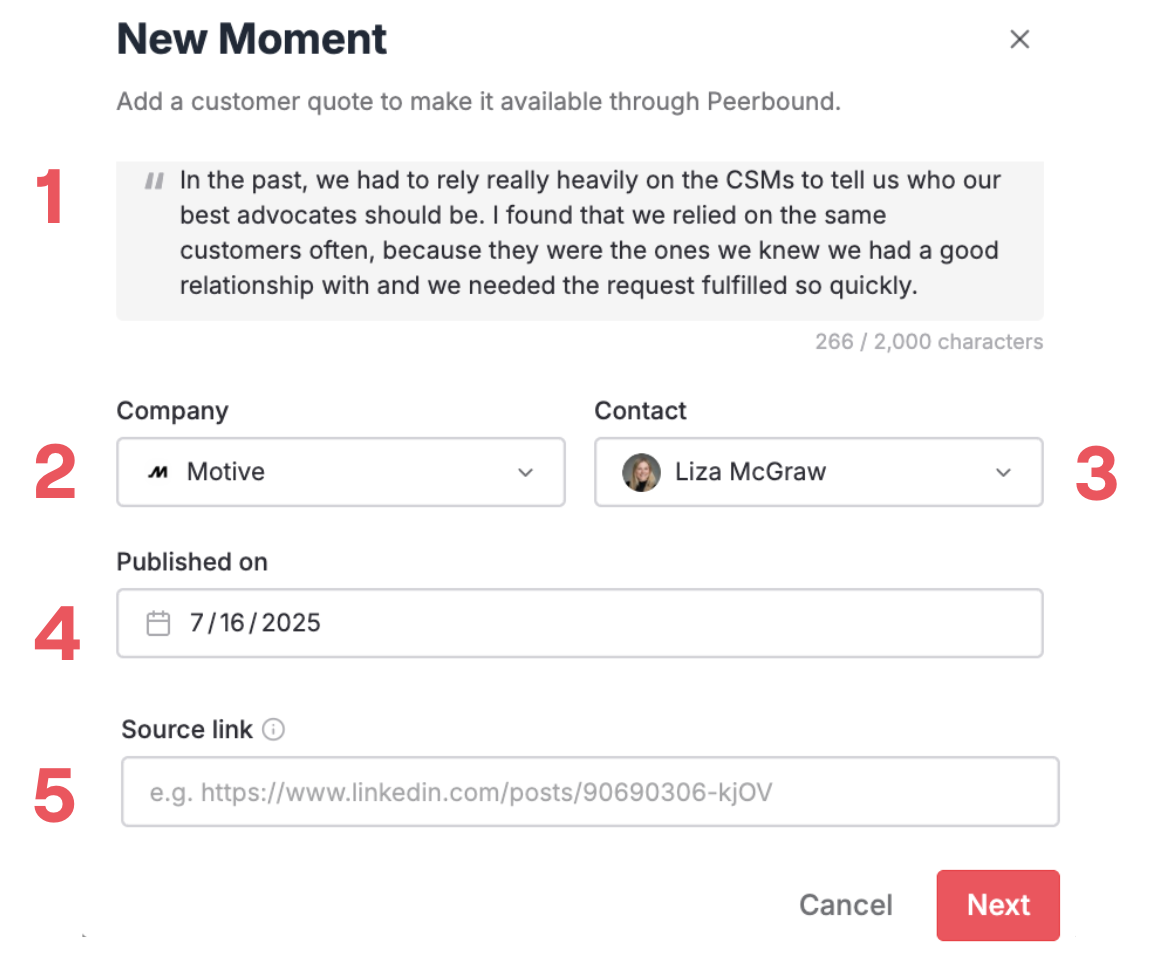
4. Date Published
Set the date when the quote was originally shared.
5. Source URL (Optional)
Add a link to the original source, such as a Slack thread or public LinkedIn post.
This helps your team quickly verify or reference the material later.
Click Next to proceed to the final step.
Step 3: Final Configuration
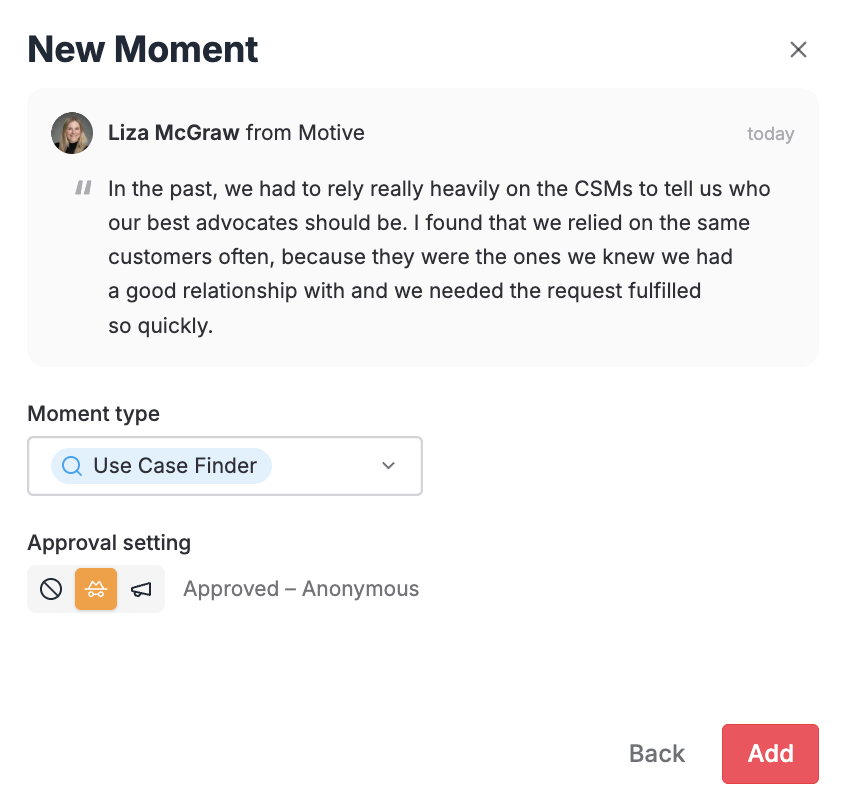
Moment Type
Peerbound will automatically detect the Moment Type (e.g., Impact Insight, People Praise), but you can manually override it and choose the most appropriate category.
Approval Status
Choose one of the following approval levels:
Not Approved – The quote will be stored but not visible in Slack or other external-facing workflows
Approved – Anonymous – The quote will be shared without attributing it to the speaker or company
Approved – Public – The quote will be shared with full speaker and company attribution
Step 4: Add the Moment
Click Add to save your new external quote to Peerbound. It will now appear alongside the other Moments in your feed.
Support
If you run into any issues, please reach out to us at support@peerbound.com or message us in Slack.
To help us troubleshoot faster, include screenshots of any errors or unexpected behavior.