Adding Stories
Last updated: November 19, 2025
Upload external stories to make them searchable and accessible across Peerbound.
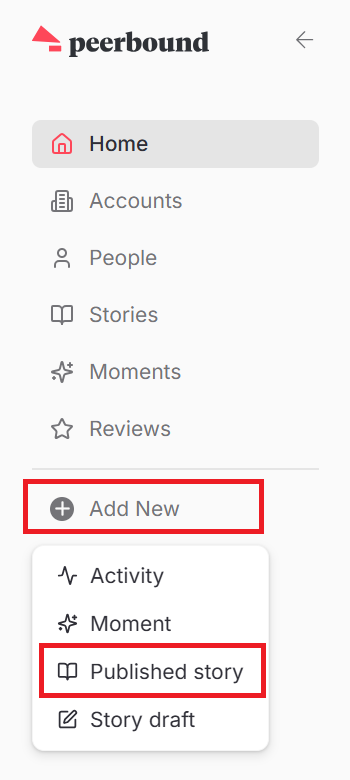
Step 1: Add a New Story
Select + Add New from the main panel
Select Published Story
Step 2: Fill Out the Story Details
a. Select the Company
Choose the customer account the story is associated with.
Note: If you have not yet integrated your CRM and the account is not available from this dropdown list, please contact your Peerbound rep to add accounts.
b. Upload the Story PDF
Upload your story file as a PDF. Peerbound uses the PDF to make the story searchable.
This can be a simple text document—the PDF itself won’t be shown to users unless you don’t add any external links in the next step.
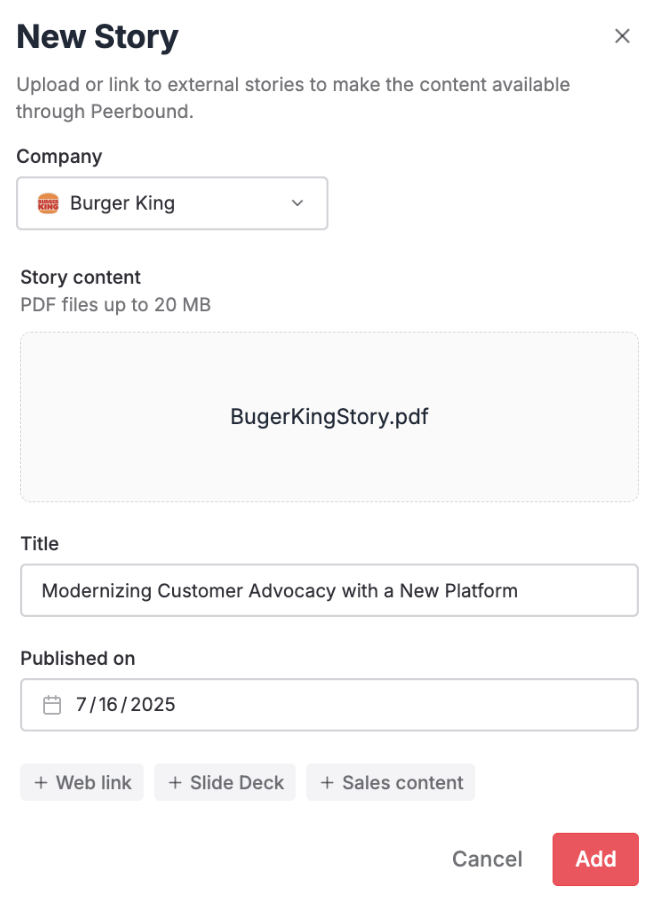
c. Title Your Story
The title will auto-fill based on the PDF content, but you can edit here if needed.
d. Enter the Date Published
Set the date the story was originally published or shared.
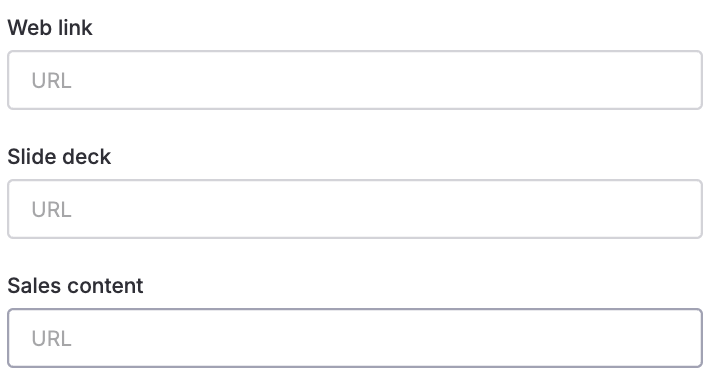
e. Add Supporting Links
You should include at least one of the following:
A link to your story (e.g., on your website, video content on YouTube)
A link to any slide deck for the story (e.g., Google Slides)
A link to sales content for the story (e.g., Highspot, published PDF)
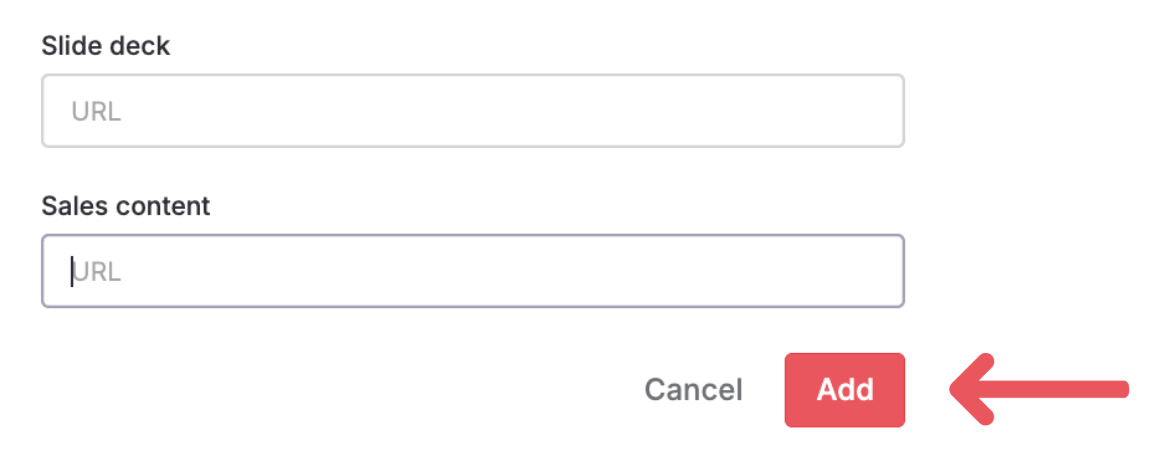
3. Click “Add”
Once all required fields are complete, click Add to upload your story to Peerbound.
It will now appear in the feed on you Account page and can be surfaced via the Slackbot and Proactive Proof.
Support
If you run into any issues, please reach out to us at support@peerbound.com or message us in Slack.
To help us troubleshoot faster, include screenshots of any errors or unexpected behavior.