Draft Email Button Not Working in Chrome
Last updated: April 7, 2026
If the Draft Email button is not working on the suggested reviews page and you are using Google Chrome as your browser, please try the following.
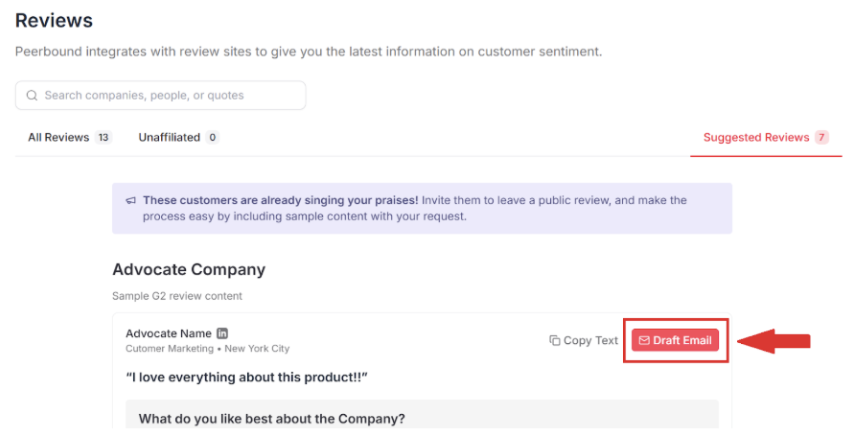
For Mac Users
Issue:
The button opens the Mail app or does not trigger Gmail correctly.
Step-by-Step Fix:
Change Default Email App to Chrome
Open the Mail app on your Mac
Go to Mail > Settings (Preferences)
Under the General tab, find Default email reader
Change it to Google Chrome
Test the Draft Email button again
Allow Gmail to Handle Mail Links in Chrome
If the issue persists:Open Chrome and go to:
https://mail.google.com/?extsrc=mailtoLook for the overlapping diamonds icon in the address bar
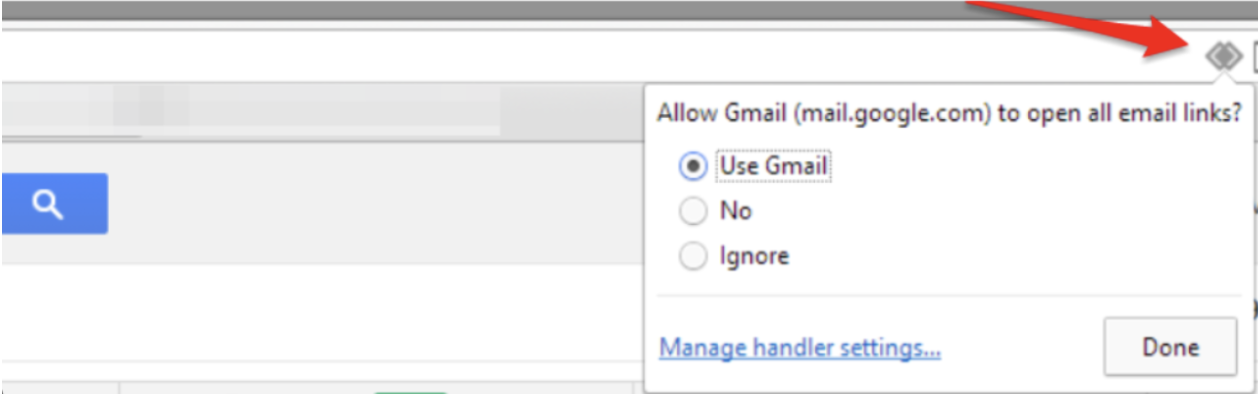
Click it and select Use Gmail
If You Don't See the Double Diamonds Icon:
In Chrome, go to:
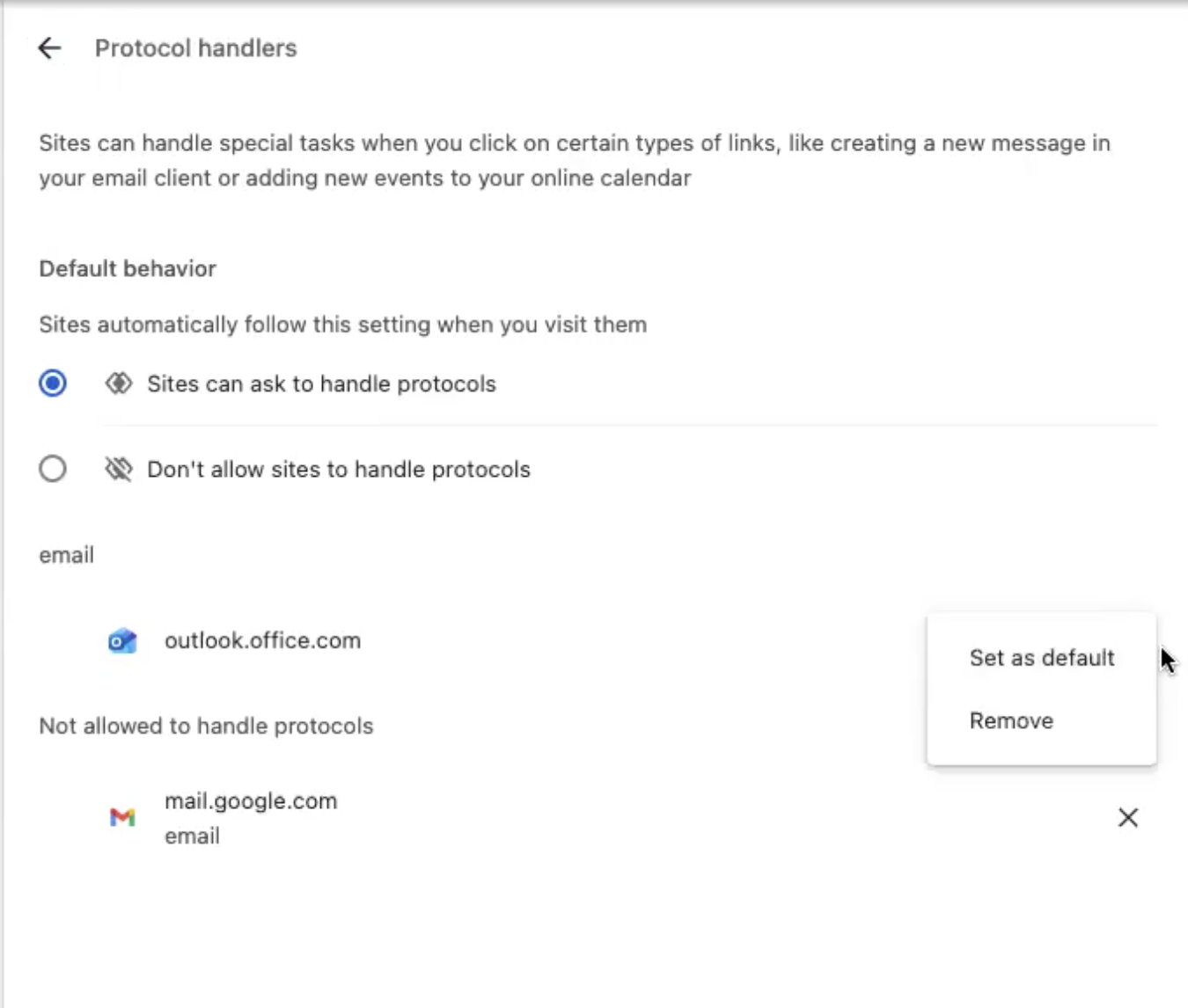
chrome://settings/handlersIf mail.google.com is listed as "not allowed," click the X to remove it
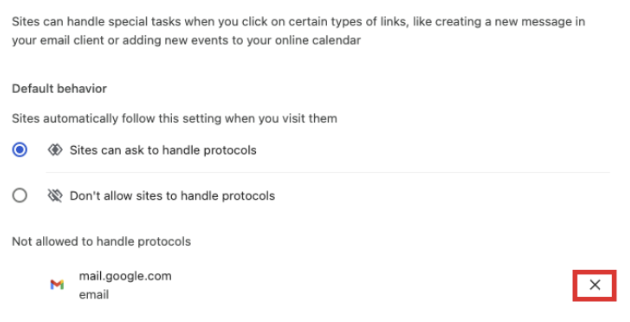
Then go back to Gmail and hard refresh the page:
Cmd + Shift + RA popup (or the diamonds in the URL bar) will appear asking for permission to handle email links—click Allow
After these steps, test the Draft Email button again.
For Windows Users
Step-by-Step Fix:
Enable Gmail as the Email Handler in Chrome
Close all open Gmail tabs
In Chrome, go to:
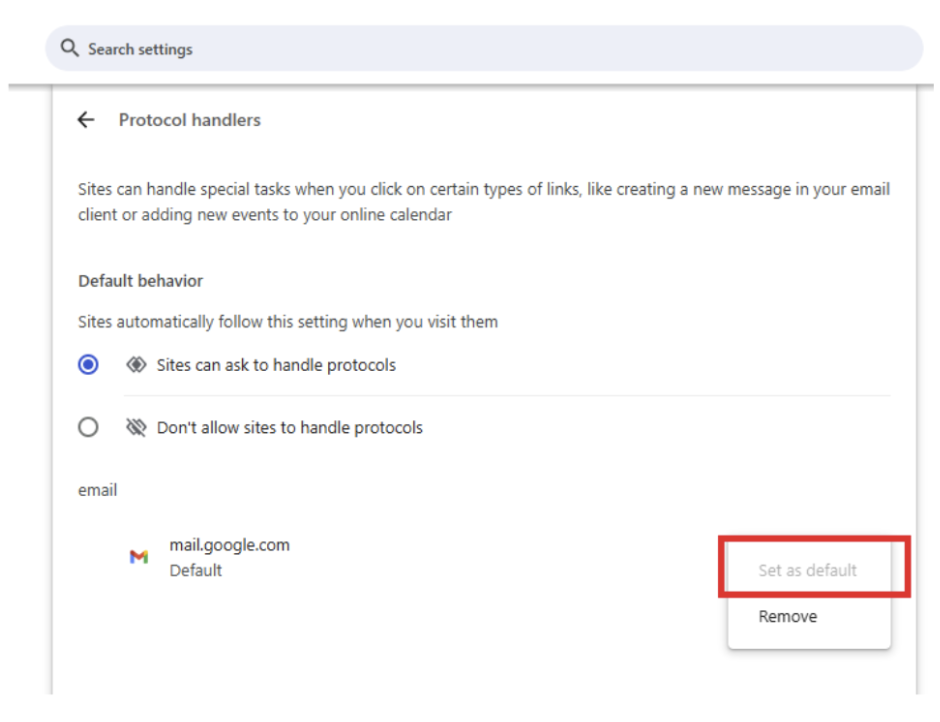
chrome://settings/handlersSelect Set as default for Gmail or your preferred email client
This may automatically fix the issue. If not, continue with the below steps.
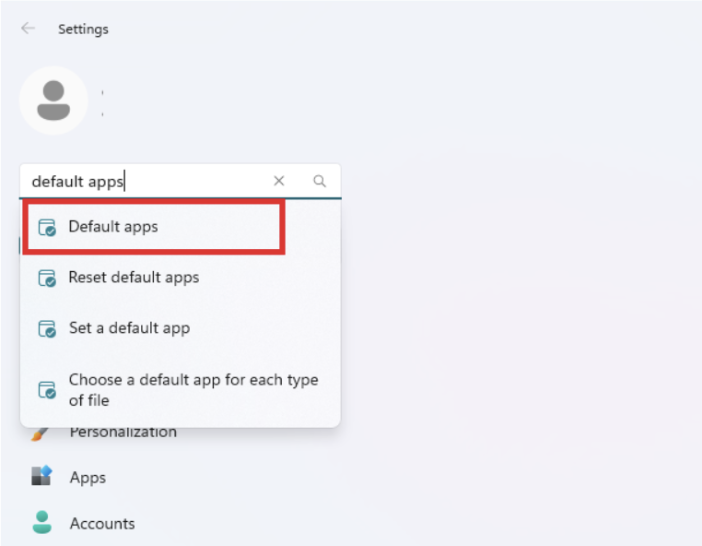
Set Google Chrome as the Default Mail App in Windows
Open Settings and search for Default apps
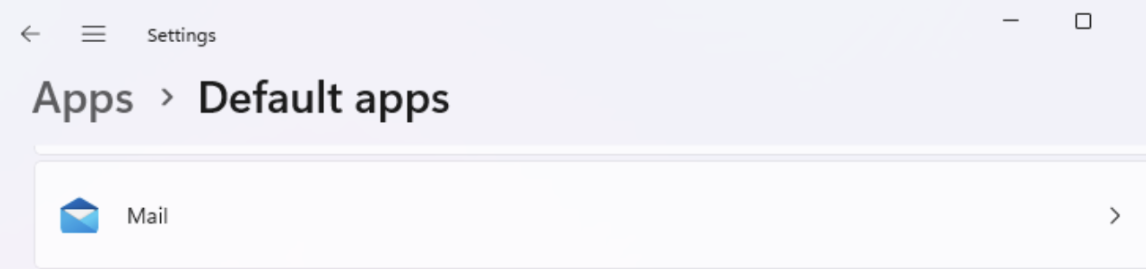
Scroll to Mail
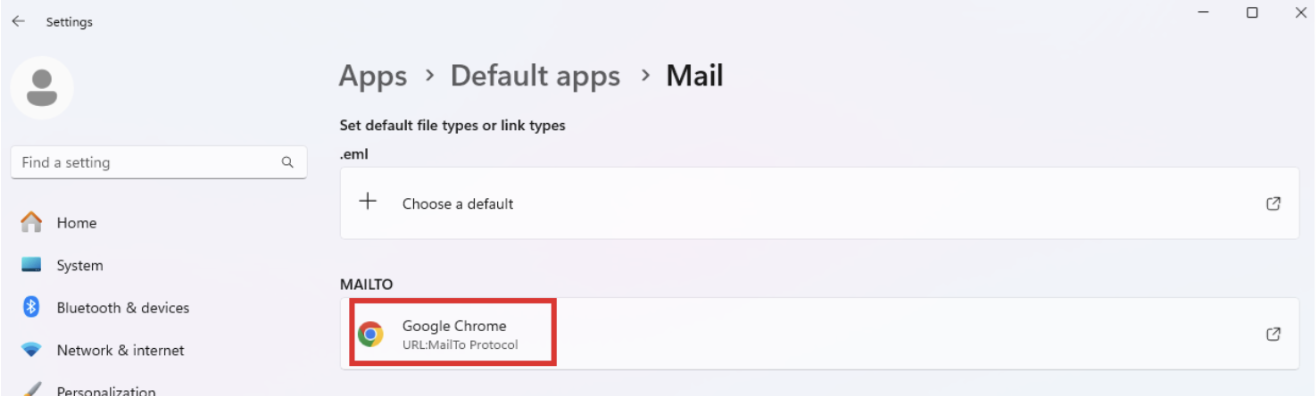
Set Google Chrome as the default MAILTO app
Once these steps are complete, the Draft Email button in Peerbound should correctly open your default email client.
Support
If you run into any issues, please reach out to us at support@peerbound.com or message us in Slack.
To help us troubleshoot faster, include screenshots of any errors or unexpected behavior.