Peerbound for AEO Setup
Last updated: September 24, 2026
To enable Peerbound for Web for your organization, please contact your CSM.
Your customers are already sharing great feedback. Peerbound for AEO helps you bring that proof directly onto your website. Showcase moments, reviews, and stories that build credibility and drive conversions.
The widget pulls content straight from Peerbound and displays it in a responsive, fully customizable grid that aligns with your brand. There’s no need for manual updates, new proof is automatically added to the top in reverse chronological order. If a customer churns or you remove content from Peerbound, it’s automatically removed from your site as well.
Peerbound for AEO Quick Start
Log in to Peerbound and navigate to the Website Embed tab in Settings
Create and name your new embed
You can use multiple embeds across your website. For example, you might display moments in one section and stories in another.
Each placement requires its own embed configuration, so you’ll need to create and configure separate embeds for each use case. There is no limit to how many embeds you can create.
Set your content preferences
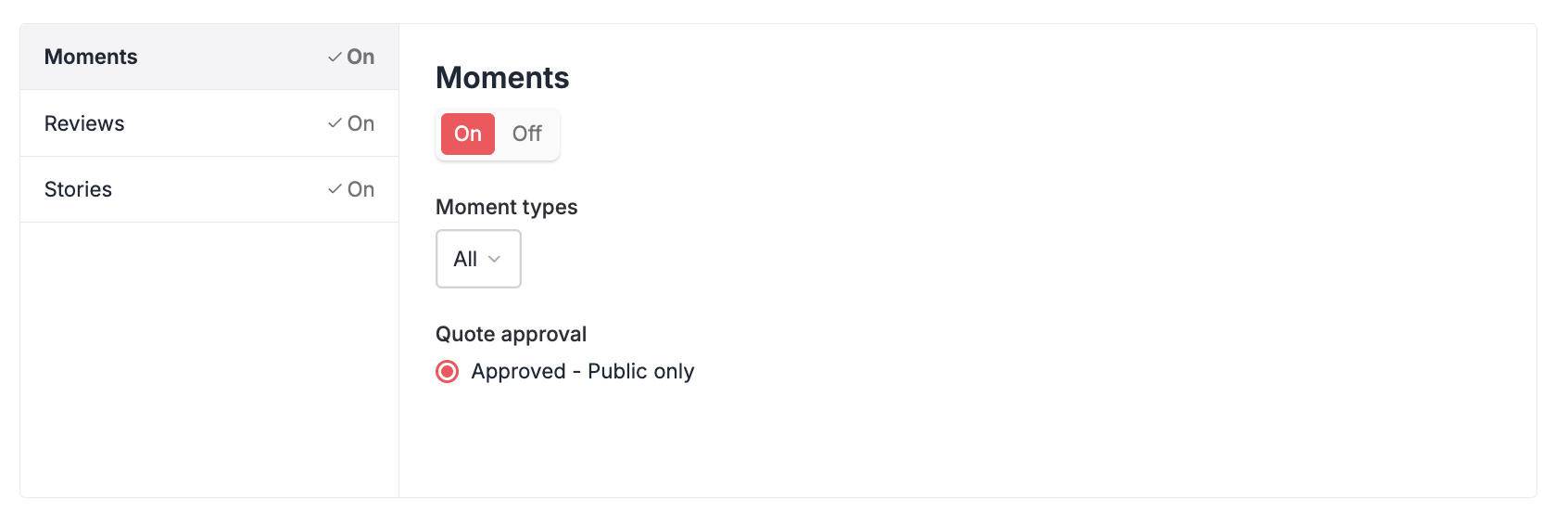
Choose which content you want to display: approved moments, reviews, and/or stories
For moments, select which moment types to include
For reviews, you can set a minimum rating
Note: Content changes go live as soon as you save them, and no additional code changes are required.
Enable Filters
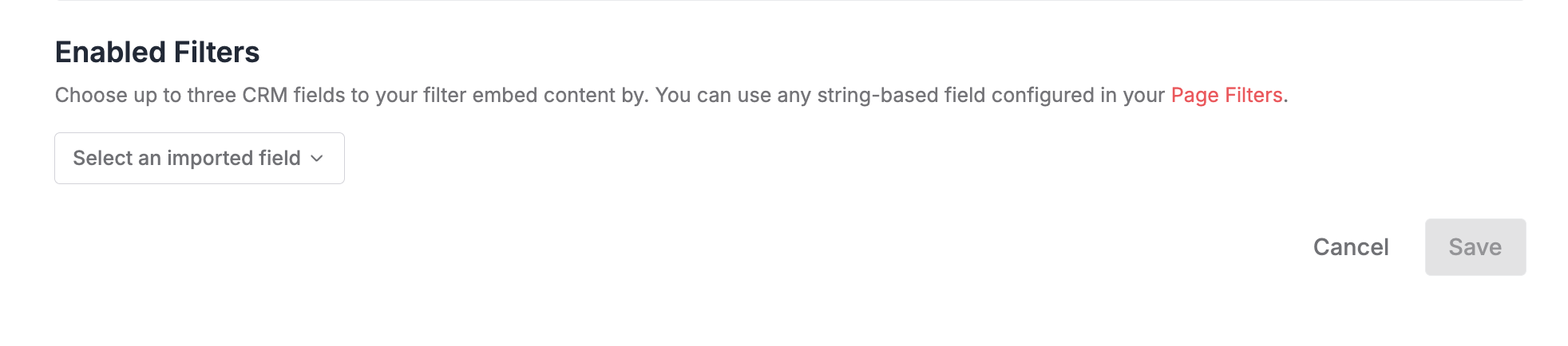
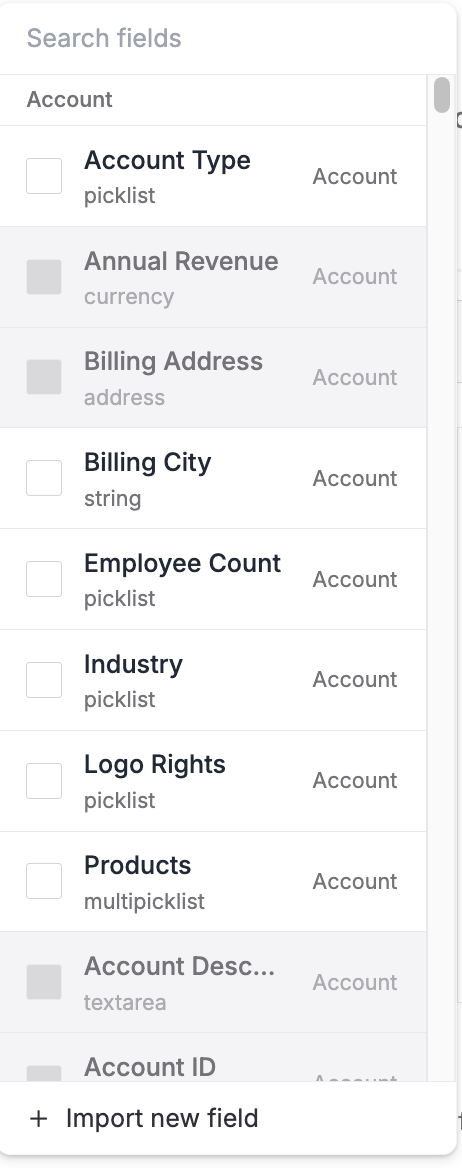
Choose up to three CRM fields to filter your embed content by. You can use any string-based field configured in your Page Filters. This is especially useful for industry-specific landing pages, where showing the most relevant proof can meaningfully improve conversion.
AEO Optimization Proof Page
AI engines and search algorithms increasingly prioritize third-party proof. Peerbound for AEO is designed to surface your customer proof in a way that supports both AEO and SEO.
Peerbound can generate a dedicated page that aggregates all of the customer proof displayed across your website. You can choose to enable or disable this page based on your preferences. The page is statically rendered, allowing AI crawlers to easily index and interpret the content.
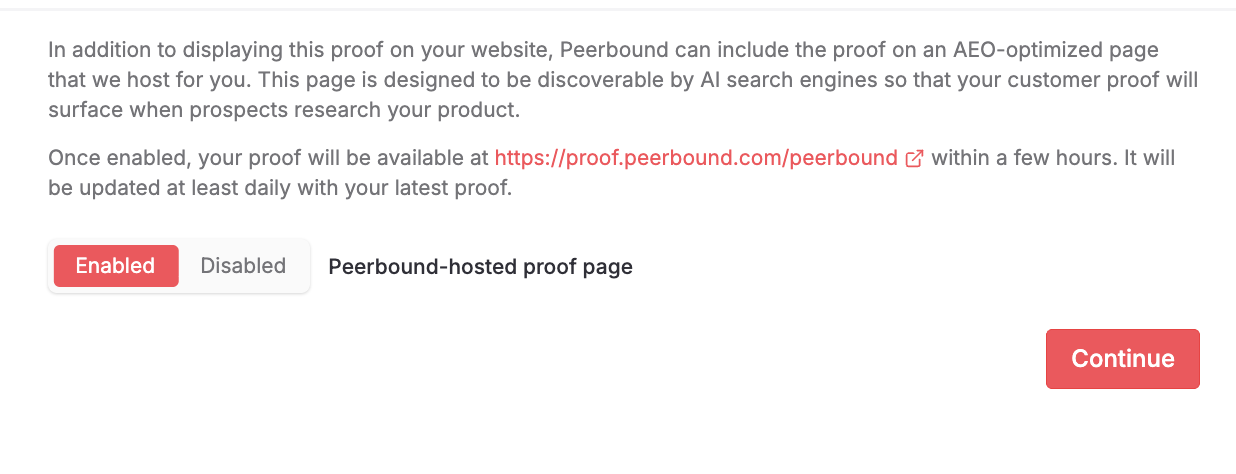
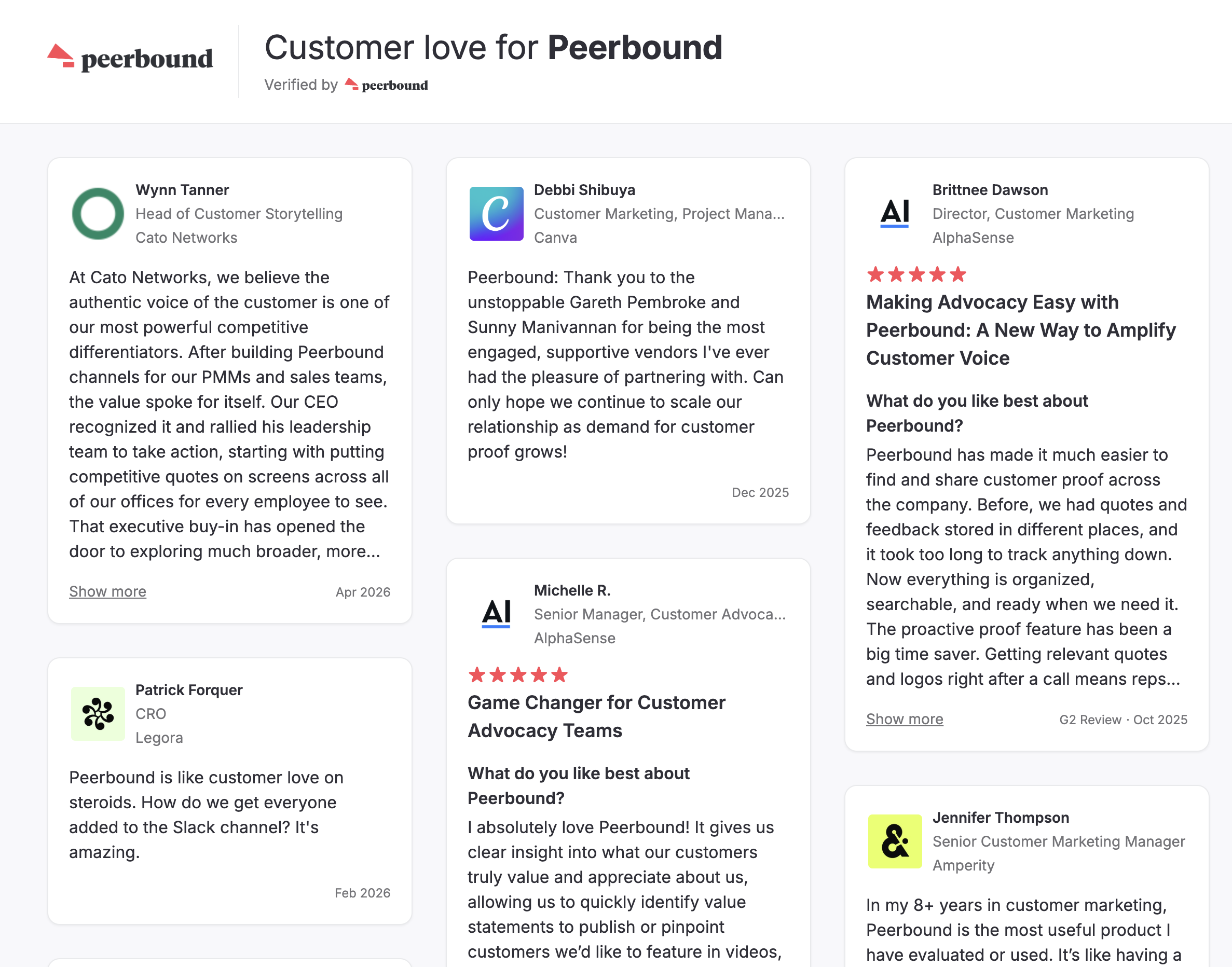
When enabled, the page becomes discoverable in AI-powered search and chat experiences, helping your customer proof appear when prospects are researching your product.
Set your Appearance and Styling preferences
Note: Changing appearance settings updates the code. To apply those changes, you will need to copy and paste the updated code into your website.
Appearance

Choose the number of advocacy items to display (from 10 to 50)
Select the advocate avatar display style (avatars are pulled from LinkedIn):
Display both the user’s profile picture and the company logo
Display the company logo only
Choose whether to display the “Verified by Peerbound” badge
Styling
Fine-tune colors and spacing to match your brand. Visit Peerbound's documentation for more advanced styling options.
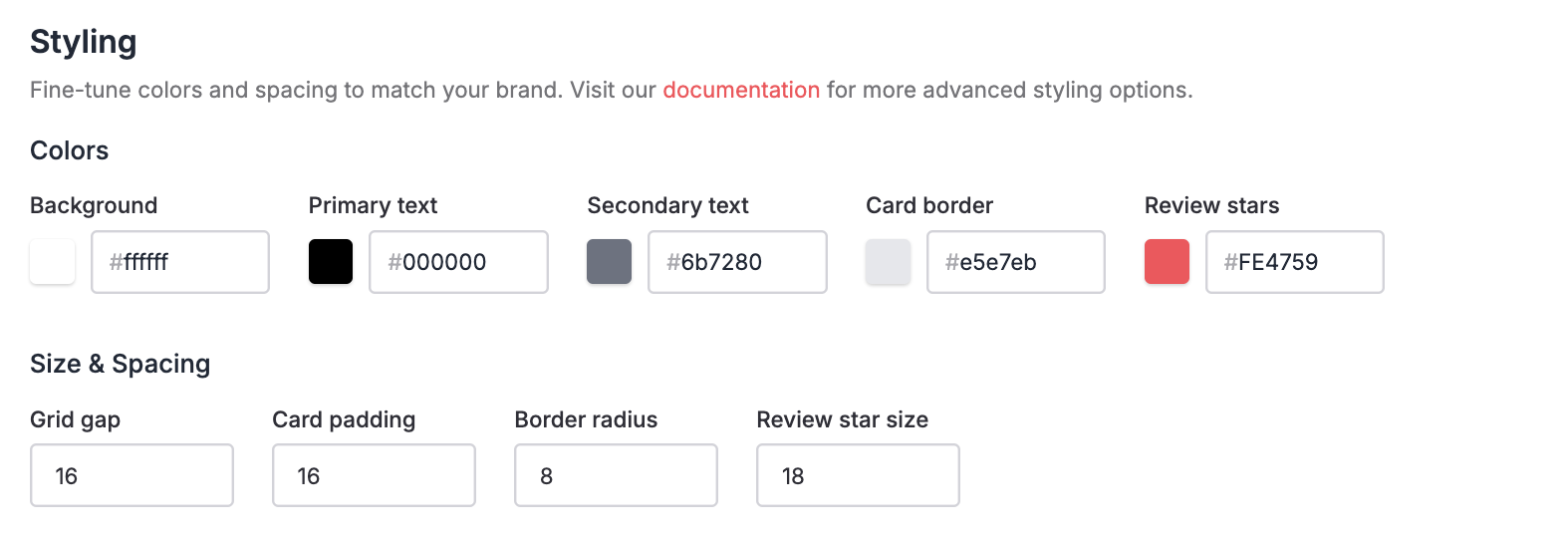
Customize the accent colors
Background color (for each quote card)
Primary text color
Secondary text color
Card border color
G2 review star color
Customize the size and spacing
Grid gap (spacing between cards)
Card padding (space between content and edges)
Border radius (corner roundness)
Review star size
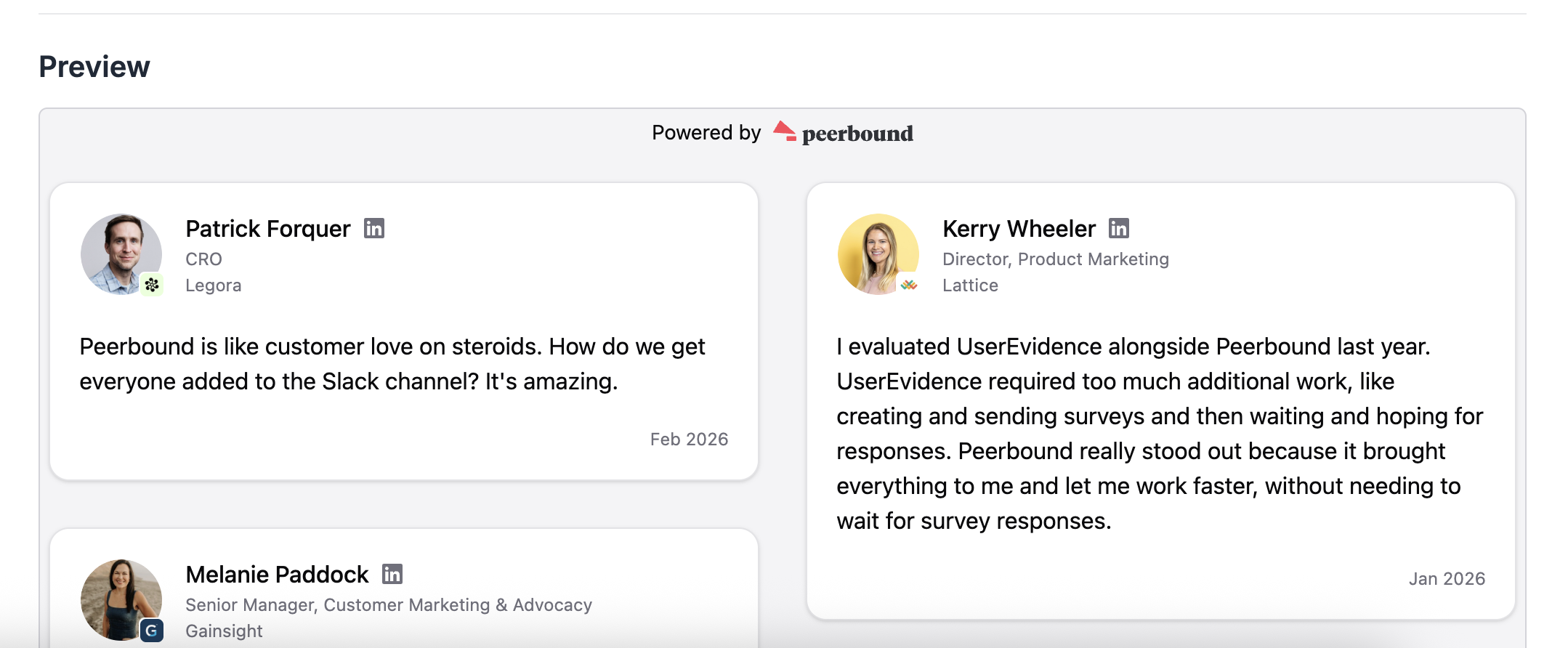
Preview your embed
Scroll down on any tab to view the preview
This shows how your Peerbound content will appear on your website
Embed the Code
Once you’ve finalized your settings, copy the embed code and paste it into your website. You can find the code in the Appearance or Styling tab.